
Stop Uploading Your PDFs: How to Merge Documents Locally & Securely
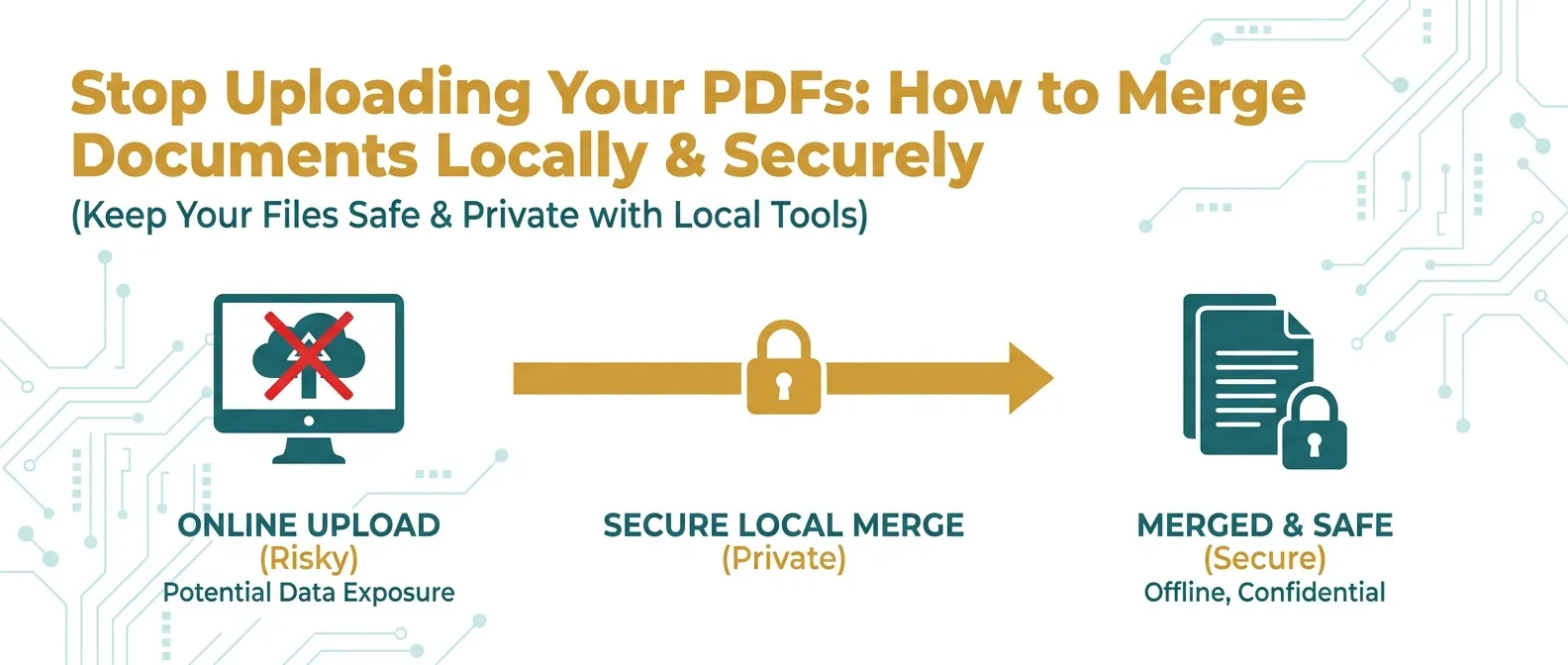
PDF files are everywhere in our modern professional lives. Whether you are a student, a small business owner, a legal professional, or a developer, you likely interact with Portable Document Format (PDF) files multiple times a day. We use them for resumes, tax invoices, quarterly reports, and legal contracts. But as our digital libraries grow, so does the need for organization. One of the most frequent tasks is the need to combine multiple PDF files into one single, organized document.
When you need to merge documents, most people take the path of least resistance: they search Google for a "free online PDF merger" and click the first result. However, there is a hidden problem with this common workflow. By using traditional cloud-based tools, you are making a trade-off that you might not even realize. In this comprehensive guide, we will explore why you should Stop Uploading Your PDFs and start utilizing the power of local, secure document management.
The Problems with Traditional Online PDF Tools:
- Data Security Risks: Many tools upload your files to a remote server. You have no control over who sees those files or how they are stored.
- Privacy Breaches: Your sensitive data (like bank statements or medical records) could be cached or logged by third parties.
- Performance Bottlenecks: Large files take a long time to upload and download, especially on slower connections.
- Hidden Costs: "Free" tools often have file size limits or page count restrictions to force you into a paid subscription.
That’s why merging PDF files locally (directly on your own device) is the superior solution for both privacy and performance. In the sections below, we will deep-dive into everything you need to know about local PDF merging, from the technical mechanics to the best free tools available in 2026.
What Does “Merge PDF Locally” Really Mean?
In the early days of the web, any complex file transformation required a powerful server. If you wanted to merge two PDFs, you had to send the raw data to a server, which would perform the "stitching" and send the result back. Today, thanks to advances in browser technology, your computer is more than powerful enough to do this work itself.
Merging a PDF locally means that the entire process happens within your **Client-Side** environment. This can be achieved in two ways:
- Browser-Native Processing: Using technologies like JavaScript and WebAssembly (WASM), a website can load the logic into your browser tab. When you select your files, the browser processes them in its local memory. The data never travels across the internet.
- Standalone Desktop Software: Traditional applications that you install on your OS (like Windows, macOS, or Linux) that run completely offline.
This is the essence of **Secure Browser Tools**: keeping your data where it belongs—on your device.
Why You Should Always Choose Local PDF Merging
1. Absolute Data Privacy
Privacy is the primary reason to avoid cloud-based PDF tools. Think about the contents of your PDFs. They often contain:
- Personal Identification: Your home address, phone number, and Social Security Number.
- Financial Details: Bank account numbers, salary information, and tax history.
- Legal Confidentiality: Contracts and agreements that are legally protected.
2. Unmatched Processing Speed
The biggest bottleneck in online tools isn't the processing time—it's the Upload and Download time. If you have five 20MB PDF files, you have to upload 100MB of data, wait for the server to process it, and then download the final file. On a standard home connection, this can take minutes. With a local tool, the merge happens instantly because the "transfer" distance is zero. Your CPU handles the binary operations at the speed of your local hardware.
3. No File Size or Page Restrictions
Most commercial online PDF mergers are designed as "lead magnets" for paid services. They will let you merge small files for free, but as soon as you try to merge a 500-page document or a file over 50MB, they trigger a "Pro Upgrade" wall. Local tools don't have these arbitrary limits. If your computer has enough RAM to open the browser, it has enough power to merge your largest documents.
4. True Offline Functionality
Have you ever tried to organize your documents while on a plane or in a remote area with poor Wi-Fi? Traditional tools fail in these scenarios. A local-first browser tool (like the ones on TryFormatter) can be loaded once and then used even if your internet connection drops. This makes it an essential workflow for digital nomads and frequent travelers.
Method 1: Use Browser-Based Local Merging (The Best Choice)
For most users, the easiest and most efficient way to merge PDFs is through a **Browser-Native tool**. These tools offer the convenience of a website without the security trade-offs. They utilize WASM (WebAssembly), which is a way to run high-performance code (like C++ or Rust) directly in the browser at near-native speeds.
The Workflow is Simple:
- Open a trusted, local-first PDF Merger Tool.
- Select the PDF files from your local folder.
- The tool generates local previews (thumbnails) so you can see what you are merging.
- Arrange the order of the files using a drag-and-drop interface.
- Click the "Merge" button. The browser stitches the files together in its temporary memory.
- The browser prompts a "Save As" dialog, and the file is written to your disk.
This method is 100% secure because the Network Tab in your browser will show zero outbound traffic during the merge process.
Method 2: Use Desktop Software for Heavy Workloads
If you are a professional who handles hundreds of documents every day, you might prefer installed software. Desktop apps often offer more advanced features like OCR (Optical Character Recognition) or deep metadata editing.
Top Recommended Offline PDF Tools:
- PDFsam Basic: A free, open-source tool specifically designed for splitting and merging. It is lightweight and works on all major operating systems.
- Adobe Acrobat (Paid): The industry standard. While powerful, it requires a subscription and can be "bloated" for simple tasks.
- LibreOffice Draw: An often-overlooked free alternative. You can open multiple PDFs and drag pages between them to merge manually.
Method 3: Command Line Tools (For Advanced Users & Developers)
For developers or those who want to automate their document workflows, the command line is king. Tools like pdftk and Ghostscript allow you to merge thousands of files with a single command.
Example using pdftk:
pdftk document_part1.pdf document_part2.pdf cat output final_document.pdfThis method is the most efficient for server-side automation (if you are building your own tools) or for users who are comfortable in a terminal environment. It is fast, free, and completely offline.
Master Your Professional PDF Workflow
Build a secure document environment with our privacy-first PDF studio:
Common Mistakes to Avoid When Merging PDFs
Even with the best tools, document management requires a bit of care. Avoid these common pitfalls:
- Mistake 1: Ignoring the "Metadata": When you merge two PDFs, the metadata (Title, Author, Creation Date) from the first file is often kept. Make sure to use a Metadata Editor to clean this up for professional submissions.
- Mistake 2: Not Checking the Page Order: Always use a tool with a Visual Preview. It’s very easy to accidentally merge "Invoices_Part2" before "Invoices_Part1" if you are just looking at a list of filenames.
- Mistake 3: Using "Free" Cloud Tools for Sensitive Data: Never, ever upload tax returns or legal contracts to a site you don't trust. The convenience isn't worth the risk of identity theft.
Why Local Tools are the Future of the Web
As we move deeper into 2026, the era of "Cloud-Everything" is being challenged by the **Edge Revolution**. Users are becoming more aware of their data rights. Regulations like **GDPR** in Europe and **CCPA** in California are forcing companies to be more transparent about data handling.
Local-first tools are the answer to this regulatory environment. By design, a tool that doesn't collect data cannot leak data. This "Security by Architecture" is why we built TryFormatter. We want to provide the tools you need without demanding your data in return.
Frequently Asked Questions (FAQs)
Is local PDF merging really as safe as they say?
Yes. Because the code runs on your CPU and uses your local RAM, the data is never exposed to the internet. It is as safe as opening a file in Notepad or Word on your computer.
Does merging PDFs locally reduce the quality?
No. Merging is a structural operation, not a compression operation. The internal objects (text, images, vectors) of the PDF are simply combined into a new container. The quality remains exactly the same as the original files.
Can I merge PDFs that are password protected?
Most local tools will require you to enter the password for the individual files before they can be merged. This is an essential security feature to prevent unauthorized document manipulation.
Is there a limit to how many files I can merge?
The only limit is your device's memory. For most modern laptops and smartphones, you can easily merge dozens of files totaling hundreds of megabytes without any issues.
Conclusion
Merging PDF files doesn't have to be a security risk. By choosing local, browser-native tools, you can combine your documents with absolute confidence. You save time by skipping the upload process, you protect your identity by keeping your data on your device, and you get professional results for free.
Next time you need to combine reports or organize your digital life, remember: Don't Upload. Merge Locally. Experience the power and privacy of the TryFormatter PDF Suite today.