PDF Page Remover Online - Delete Pages from PDF for Free
Delete specific pages or page ranges from a PDF directly in your browser. Fully interactive: upload a file, click the pages you want to remove, and download the updated PDF instantly. Safe, private, and runs entirely on your device. All processing happens locally in your browser.
Removal Console
Click on thumbnails or type page numbers separated by commas. Use hyphens for ranges (e.g. 2-5).
Local Processing Only
Your document stays inside your browser sandbox. Page stripping is processed on your device CPU and never saved online.
What is the PDF Page Remover?
The PDF Page Remover is a professional browser-native utility designed to let you delete specific pages from any PDF document without uploading files to third-party servers. Whether you have a scanned document with accidental blank sheets, an invoice with a redundant terms-of-service page, or a confidential financial report containing sensitive pages that should be stripped before delivery, this secure browser tool provides a fast and reliable solution. It uses advanced client-side processing, meaning the file editing occurs entirely inside your browser sandbox and your document never travels across the network.
Need to keep part of a page instead of deleting the complete page? Use the Crop PDF tool to trim page areas and remove unwanted margins.
Using modern WebAssembly and JavaScript compilation, our tool reads the binary structure of your uploaded document, renders each page as a lightweight visual thumbnail preview, and allows you to strip out any sheets. Once you execute the removal, a new clean PDF document is compiled and downloaded. It is fast, secure, and complies with modern enterprise security standards.
How to use the PDF Page Remover
Removing unwanted pages from your document is simple, fast, and fully visual. Follow these detailed steps to organize your files:
- Upload your PDF file: Drag and drop your document into the secure workspace area, or click "Upload File" to select a PDF from your local filesystem.
- Select pages to delete: Hover over the page thumbnail previews and click the "Delete" icon overlay on any page you want to remove. Alternatively, you can type specific page numbers or ranges (e.g., "1, 3-5, 12") in the manual input box in the sidebar console.
- Review your changes: The visual grid will show a red overlay and an active trash state on all selected pages, making it easy to double-check that you are only removing the intended sheets.
- Export the clean document: Click the "Remove Pages" button. The tool will compile your new document, omitting the deleted pages, and download it instantly to your device.
Use cases for deleting PDF pages
Modern professionals, students, and businesses handle countless PDF files every day. Here are some of the most common situations where you need to quickly remove pages:
- Removing scanned blank sheets: Automatic document feeders (ADFs) often scan empty backpages, resulting in bloated files. This tool lets you clean up scans in seconds.
- Stripping confidential pages: When sharing contracts, proposals, or reports, you may want to delete pages that contain internal pricing sheets, client contact lists, or proprietary details.
- Extracting specific report sections: If a report is 50 pages long but your team only needs pages 5 through 10, you can delete pages 1-4 and 11-50 to deliver a concise, focused document.
- Cleaning up books and ebooks: Remove redundant cover pages, index charts, or ads from PDFs to optimize your reading layout and reduce scrolling time on mobile devices.
Examples of page selection syntax
If you prefer using the manual page selection input instead of clicking thumbnails, our parser supports standard document ranges:
- Single pages: Enter individual numbers separated by commas (e.g.
2, 4, 7) to remove exactly those pages. - Page ranges: Use hyphens for consecutive sequences (e.g.
3-6to remove pages 3, 4, 5, and 6). - Mixed selection: Combine both formats freely (e.g.
1, 3-5, 9, 12-15) to construct complex deletion commands.
Privacy and data handling
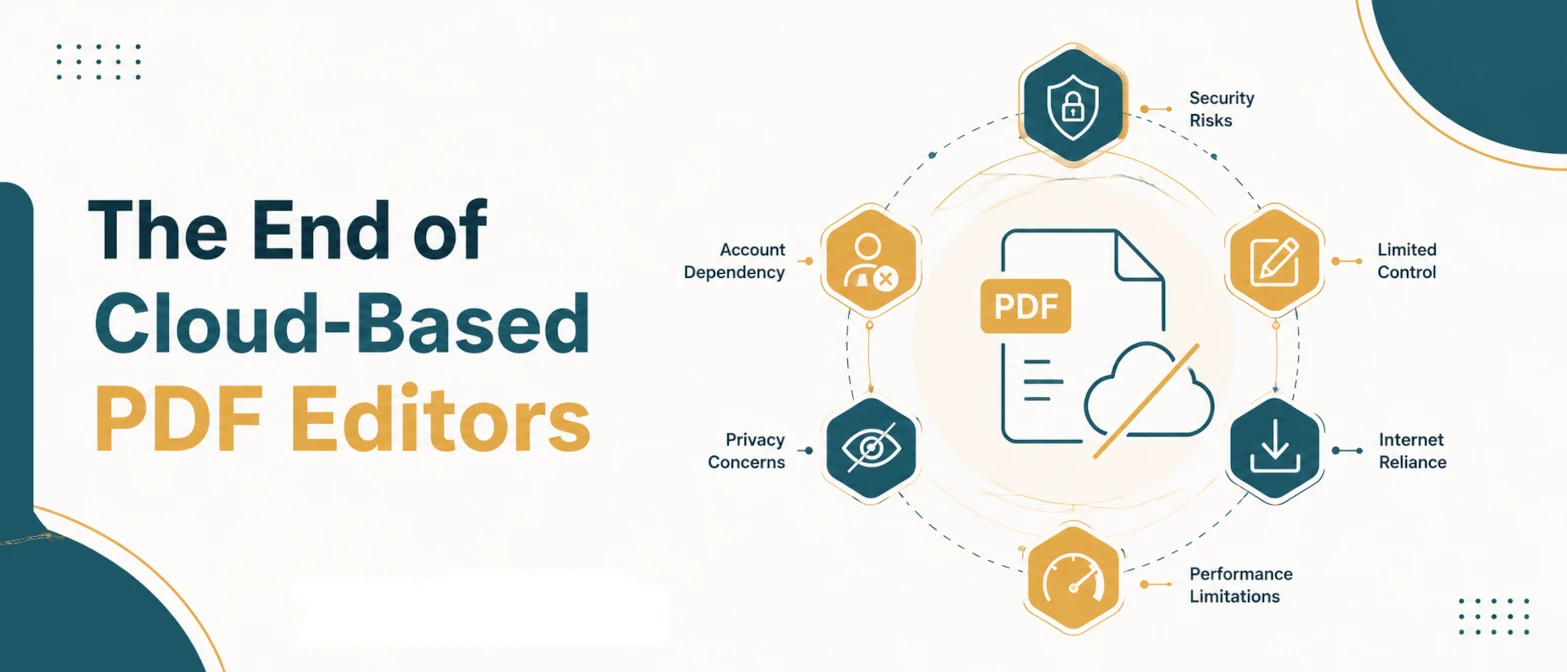
At TryFormatter, your document privacy is our absolute priority. Unlike legacy cloud editors that require you to upload your files to remote servers, our PDF Page Remover runs 100% locally. By using advanced browser technologies like pdf-lib and pdf.js, all PDF rendering, splitting, page removal, and file assembly happen within your browser's private sandbox memory. Your files never leave your device. We do not log, store, or transmit your document contents, ensuring compliance with strict corporate compliance regulations, HIPAA, GDPR, and CCPA standards. You can even disconnect your internet connection entirely once the page has loaded and the tool will continue to work perfectly offline.
Common mistakes when removing pages
To avoid unexpected results or losing important data during document editing, keep these common mistakes in mind:
- Forgetting to keep an original backup: Because the tool downloads a new, modified version of your PDF, it is always a best practice to keep a backup of the original document in case you accidentally delete a critical page.
- Confusing page numbers with sheet numbers: When working with double-sided documents, remember that each sheet has two pages. Make sure you select both page numbers if you want to remove an entire physical sheet.
- Overlooking password-protected files: PDF files that are locked with an owner password cannot be modified without authorization. Ensure you remove protection or input the correct password before attempting page edits.
Frequently Asked Questions
Does this tool upload my files to a server?
No. The PDF Page Remover processes your files entirely within your local browser's memory using advanced client-side JavaScript. Your documents never touch our servers.
How do I select multiple pages to delete?
You can select pages visually by clicking the trash icon overlay on each page thumbnail, or by typing a list/range of page numbers (e.g., '1, 3-5, 8') in the sidebar input field.
Can I recover a page after I delete it?
Yes, as long as you have not closed the window or overwritten your original file. The tool does not modify your original file on disk; it simply lets you download a new edited copy. If you make a mistake, you can reload the file and start again.
Is there a limit to the file size or page count I can upload?
Since processing happens locally on your computer, there are no artificial limits. You are only limited by your device's memory (RAM) and processor speed. Most modern laptops and phones can handle PDFs with hundreds of pages easily.
Does removing pages reduce the file size of the PDF?
Yes. By deleting pages containing images, fonts, and text layout resources, the overall payload size of the PDF file will be reduced, making it easier to share via email or upload to form portals.