
Free Robots.txt Generator — Visual Builder and Validator
Create professional, error-free robots.txt files in seconds. Visually manage crawler directives for Googlebot, Bingbot, and more, all processed securely in your browser. All processing happens locally in your browser.
One-Click Presets & Framework Templates
1. What is robots.txt?
A robots.txt file is the first document many search engine crawlers request when visiting your website. It tells compliant crawlers which parts of your site they may crawl, helping manage crawler activity, improve crawl efficiency, and expose your XML sitemap location.
The file must be placed at the root of your domain, such as https://example.com/robots.txt. It must also be named exactly robots.txt in lowercase letters. Search bots request this exact path; a file named Robots.txt or placed inside a subfolder will not work as expected.
Robots.txt is based on the Robots Exclusion Protocol, now formally standardized as RFC 9309. It is a plain-text file written with directive lines such as User-agent, Allow, Disallow, Crawl-delay, and Sitemap. The TryFormatter Robots.txt Generator helps you create, validate, preview, and download clean crawler rules directly in your browser.
2. Why robots.txt matters
Search engines do not crawl every URL on every website with equal priority. Each site receives limited crawl attention based on factors such as server performance, site structure, content quality, and authority. If crawlers spend too much time on duplicate pages, internal search results, cart URLs, filters, staging folders, or technical endpoints, they may spend less time discovering your important pages.
A well-written robots.txt file helps guide compliant crawlers away from low-value paths and toward the URLs that matter most. It can also declare your sitemap location, reduce unnecessary server load, and help you manage access from selected AI crawlers and social preview bots.
Crawl Budget Optimization
Guide search bots away from low-value URLs such as admin paths, cart pages, parameter pages, and internal search results.
Server Load Management
Reduce unnecessary crawler requests so your server resources remain focused on real visitors and high-value crawl paths.
AI Bot Management
Allow or block specific AI crawlers such as GPTBot, ClaudeBot, PerplexityBot, and ChatGPT-User when those crawlers respect robots.txt.
Sitemap Discovery
Expose your XML sitemap URL so search engines can discover updated pages and indexable site sections faster.
3. How search engine crawlers use robots.txt
Before fetching pages from a website, many compliant crawlers request the site's robots.txt file. The crawler reads the file, identifies the rule group matching its user-agent, and checks whether the target URL path is allowed or disallowed.
- HTTP 200 OK: The crawler downloads and parses the file, then applies the matching rules.
- HTTP 404 Not Found: The crawler assumes no robots.txt restrictions exist and proceeds to crawl public URLs it discovers.
- HTTP 5xx Server Error: The crawler may pause crawling because it treats the file as temporarily unavailable.
Search engines often cache robots.txt for a limited period to reduce repeated requests. If you change your rules, crawlers may not immediately apply the new file. For urgent fixes, verify the public file and use Google Search Console tools to request recrawling where available.
4. Robots.txt vs Meta Robots vs X-Robots-Tag
Robots.txt controls crawling, not indexing. Meta Robots and X-Robots-Tag control whether a crawled resource should appear in search results. This distinction is important because blocking a URL in robots.txt can prevent a crawler from seeing a noindex tag on the page.
| SEO Control | Primary Purpose | Implementation Location | Saves Crawl Budget | Can Remove From Index | Best Use Case |
|---|---|---|---|---|---|
| robots.txt | Controls crawling | Root file at /robots.txt | Yes | No, not reliably | Blocking low-value crawl paths such as filters, carts, or internal search pages. |
| Meta Robots | Controls indexing | HTML <head> |
No | Yes | Removing HTML pages from search results while still allowing crawlers to read the page. |
| X-Robots-Tag | Controls indexing | HTTP response header | No | Yes | Applying noindex rules to PDFs, images, downloads, and non-HTML files. |
| Canonical Link | Consolidates duplicate URL signals | HTML or HTTP header | No | No | Pointing duplicate or similar pages toward the preferred canonical URL. |
The conflict trap: Disallow + Noindex
If you block a URL in robots.txt and also place a noindex meta tag on that same URL, crawlers may never reach the page to read the noindex instruction. To remove a page from search results, allow crawling and use noindex instead.
5. Robots.txt Cheat Sheet
Use this quick reference to understand the most common robots.txt directives and pattern rules.
| Directive | Purpose | Example |
|---|---|---|
| User-agent | Targets a crawler or group of crawlers. | User-agent: Googlebot |
| Allow | Permits crawling of a path, often used to override a broader disallow rule. | Allow: /blog/ |
| Disallow | Requests that compliant crawlers avoid a path. | Disallow: /admin/ |
| Sitemap | Declares the absolute URL of your XML sitemap. | Sitemap: https://example.com/sitemap.xml |
| Crawl-delay | Requests a delay between crawler requests. Not supported by Googlebot. | Crawl-delay: 5 |
| * | Wildcard that matches zero or more characters. | Disallow: /*?* |
| $ | End-of-path anchor. | Disallow: /*.pdf$ |
6. Allow vs Disallow explained
The core of a robots.txt file is a set of Allow and Disallow directives under a targeted User-agent. Crawlers evaluate URL paths from the website root.
User-agent: *
Disallow: /admin/
Allow: /admin/help/

Sitemap: https://example.com/sitemap.xml
In this example, crawlers are asked not to crawl most URLs under /admin/, but they may crawl /admin/help/. When an Allow and Disallow rule both match a URL, major crawlers such as Googlebot generally use the most specific matching rule.
| Rule | Blocks | Does Not Block |
|---|---|---|
Disallow: /admin |
/admin, /admin/, /admin-panel, /administrator.html |
/blog, /about, /images |
Disallow: /admin/ |
/admin/, /admin/dashboard, /admin/users |
/admin-panel, /administrator.html |
Disallow: /*?* |
URLs containing query parameters, such as /shop?sort=price |
Clean URLs such as /shop and /blog/post |
7. Crawl-delay explained
The Crawl-delay directive requests that a crawler wait a defined number of seconds between page requests. It can help reduce load from crawlers that support the directive, especially on small servers.
However, support varies. Googlebot does not use the Crawl-delay directive. Google manages crawl rate dynamically based on server response patterns and site health. Bingbot and some other crawlers may respect it. For Google, manage crawling through server performance, Search Console settings where available, and clean site architecture rather than relying on Crawl-delay.
8. Sitemap directive explained
The Sitemap directive tells compliant crawlers where to find your XML sitemap or sitemap index. It is independent of individual user-agent blocks and can be placed anywhere in the file, although many webmasters place sitemap directives at the bottom.
Always use the absolute sitemap URL, including the protocol and domain. For example: Sitemap: https://www.tryformatter.com/sitemap.xml. Multiple sitemaps can be listed on separate lines.
9. AI Crawlers, Scrapers, and Use Cases
Modern websites are visited not only by search engines but also by AI crawlers, answer engines, social preview bots, and content analysis agents. Robots.txt can help communicate access preferences to compliant crawlers, but it is not a legal or technical security boundary.
Blocking GPTBot, ClaudeBot, or another crawler only affects crawlers that respect the Robots Exclusion Protocol. It does not guarantee that all AI systems, third-party scrapers, browser extensions, or copied datasets will stop accessing or referencing publicly available content.
| Bot | User-Agent String | Operator | Purpose | Crawl Type |
|---|---|---|---|---|
| GPTBot | GPTBot |
OpenAI | May crawl publicly available pages for model-related use cases. | Automated crawl |
| ChatGPT User | ChatGPT-User |
OpenAI | May retrieve pages in response to user-initiated browsing or search requests. | User-triggered retrieval |
| ClaudeBot | ClaudeBot |
Anthropic | Used by Anthropic for automated web crawling where applicable. | Automated crawl |
| Claude User | Claude-User |
Anthropic | May retrieve pages in response to user-directed actions. | User-triggered retrieval |
| PerplexityBot | PerplexityBot |
Perplexity | Used for answer retrieval and indexing workflows. | Search/answer retrieval |
| Googlebot | Googlebot |
Crawls and indexes pages for Google Search. | Search indexing | |
| Bingbot | Bingbot |
Microsoft | Crawls and indexes pages for Bing Search. | Search indexing |
| Applebot | Applebot |
Apple | Used by Apple services such as Spotlight, Siri, and related search features. | Search indexing |
| Meta External Agent | meta-externalagent |
Meta | May retrieve public web content for Meta AI and preview-related systems. | Automated retrieval |
10. Common robots.txt mistakes
Incorrect robots.txt rules can cause search visibility problems, rendering issues, and crawl waste. The TryFormatter Robots.txt Generator audits your file for common errors before you deploy.
Resource rendering blocks
Blocking CSS, JavaScript, fonts, or framework assets can prevent search engines from rendering your page like a real user.
Accidental Disallow all
Disallow: / under User-agent: * blocks compliant crawlers from crawling your whole website.
Image and video crawl blocks
Blocking image, video, or PDF folders can reduce visibility in media search and prevent rich previews from working properly.
Orphan sitemap files
If your robots.txt does not reference your XML sitemap, some crawlers may take longer to discover updated URLs.
Syntax format errors
Examples include missing colons, incorrect spacing, unsupported directives, or malformed user-agent groups.
Theme and plugin asset issues
In WordPress, blocking /wp-content/ may prevent crawlers from loading important theme, plugin, image, and CSS assets.
11. Examples of robots.txt configurations
Use these templates as safe starting points, then customize paths and sitemap URLs for your own website. Avoid copying a template blindly without understanding your site's actual structure.
User-agent: *
Disallow: /wp-admin/
Allow: /wp-admin/admin-ajax.php

Sitemap: https://example.com/wp-sitemap.xmlUser-agent: *
Disallow: /api/
Disallow: /admin/
Disallow: /preview/
Sitemap: https://example.com/sitemap.xmlUser-agent: *
Disallow: /checkout/
Disallow: /cart/
Disallow: /my-account/
Disallow: /search/
Disallow: /*?sort=
Disallow: /*?filter=
Sitemap: https://example.com/sitemap.xmlUser-agent: GPTBot
Disallow: /
User-agent: ClaudeBot
Disallow: /
User-agent: PerplexityBot
Disallow: /
Sitemap: https://example.com/sitemap.xmlUser-agent: *
Disallow: /drafts/
Disallow: /private/
Disallow: /admin/
Sitemap: https://example.com/sitemap.xml12. How to deploy robots.txt
Follow this deployment workflow to generate, upload, test, and monitor your robots.txt file.
Build your rules
Configure bot groups, add Allow and Disallow paths, set crawler access preferences, and declare your XML sitemap URL.
Validate syntax
Review the automated validation report. Check for critical errors, path conflicts, crawl-delay warnings, and optimize your Robots Health Score.
Upload to server root
Download the generated robots.txt file to your device. Upload it to the root folder of your website hosting server (typically public_html or the main root directory).
Verify HTTP 200 access
Open a web browser and visit your public robots.txt URL (e.g., https://yourdomain.com/robots.txt). Verify that it resolves with a successful HTTP 200 status and matches your rules.
Test with Search Console
Use the Google Search Console Robots Testing Tool or URL Inspection dashboard to confirm that Googlebot can fetch and parse your new rules correctly.
Monitor crawl behavior
Regularly check the Crawl Stats report and Page Indexing dashboard in Google Search Console to monitor crawl traffic and check for any blocked resources.
13. Validation Checklist
Use this pre-launch checklist before uploading robots.txt to your production website. Checkbox selections are saved locally in your browser workspace.
14. Browser Privacy
All robots.txt generation, validation, syntax analysis, health scoring, preview rendering, and report creation run entirely inside your browser. No account is required, and your generated crawler rules remain under your control. TryFormatter does not store your generated robots.txt file or rule configurations after processing.
15. Integrated SEO Tools Workflow
Robots.txt is one part of a complete technical SEO workflow. Use it together with TryFormatter's other SEO Studio tools to build a cleaner, more crawlable site.
SEO Audit Tool
Audit website SEO score, metadata, headings, schemas, links, and technical issues.Broken Link Checker
Find broken URLs, redirects, and crawl dead ends before publishing rules.XML Sitemap Generator
Create a clean sitemap and reference it from your robots.txt file.JSON-LD Schema Generator
Add structured data for eligible rich results and machine-readable entities.AI Meta Tag Generator
Optimize titles, descriptions, canonical URLs, and social previews.Frequently Asked Questions
What happens if my website does not have a robots.txt file?
If a robots.txt file is missing, search engine crawlers usually assume there are no crawl restrictions. They may crawl public URLs they discover through links, sitemaps, and other signals. This default behavior is acceptable for small sites with no private or low-value crawl paths.
Can robots.txt hide private pages or admin directories?
No. Robots.txt is public and anyone can read it by visiting /robots.txt on your domain. Do not use robots.txt to hide sensitive content. Use authentication, access control, password protection, or server-level restrictions for private pages.
Does robots.txt guarantee blocked pages will not appear in search results?
No. Robots.txt can stop compliant crawlers from fetching a page, but it does not reliably remove the URL from search results. If another site links to the blocked URL, search engines may still show the URL without a snippet. Use noindex for index removal.
How does Google handle conflicting Allow and Disallow rules?
Googlebot generally uses the most specific matching rule. If both Allow and Disallow match a URL, the longer matching path usually wins. If both paths are equally specific, Google generally allows crawling.
Do search engine crawlers respect the Crawl-delay directive?
Support varies by crawler. Googlebot does not use Crawl-delay. Bingbot and some other crawlers may respect it. For Google, focus on server performance, clean internal linking, and Search Console settings where available.
What happens if I block GPTBot in robots.txt?
Blocking GPTBot requests that OpenAI's GPTBot not crawl the specified paths, assuming the crawler respects robots.txt. It does not remove your pages from Google, Bing, or other search results, and it does not guarantee control over all AI-related access.
How do I block major AI crawlers from my website?
Create separate user-agent blocks for bots such as GPTBot, ClaudeBot, and PerplexityBot, then add Disallow: / under each block. Keep in mind that robots.txt is a request to compliant crawlers, not a security barrier.
Can I use relative paths in the Sitemap directive?
No. The Sitemap directive should use the absolute URL of your sitemap file, including https:// and the domain name. For example: Sitemap: https://example.com/sitemap.xml.
Can one robots.txt file reference multiple sitemaps?
Yes. Add each sitemap on its own line, such as Sitemap: https://example.com/sitemap.xml and Sitemap: https://example.com/image-sitemap.xml. This is useful for large sites with multiple sitemap files.
How do I allow one search bot and block all others?
Create one rule group for the allowed bot with Allow: /. Then create a wildcard group using User-agent: * with Disallow: /. Test carefully before deploying because a mistake can block important crawlers.
Does case sensitivity matter in robots.txt paths?
Yes. URL paths in robots.txt are case-sensitive. A rule for Disallow: /admin/ blocks /admin/dashboard but not /Admin/dashboard.
What does the dollar sign ($) do in a robots.txt path?
The dollar sign anchors a rule to the end of the URL. For example, Disallow: /*.pdf$ blocks URLs ending in .pdf, but not URLs such as /pdf-guide.html.
How long does it take Google to notice robots.txt changes?
Google may cache robots.txt for a period of time, often up to about a day. After you update the file, verify that the public URL serves the new version and use Search Console tools where available to request recrawling.
What is the maximum file size for robots.txt?
Google supports robots.txt files up to 500KB for parsing. Content beyond that limit may be ignored. Keep your robots.txt file concise and avoid unnecessary duplicate rules.
How do I verify that robots.txt is working correctly?
Open https://yourdomain.com/robots.txt in a browser to confirm it returns HTTP 200. Then test important URLs in Google Search Console to check whether Googlebot is allowed or blocked.
Should staging or development websites use robots.txt?
Yes, but do not rely on robots.txt alone for private staging sites. Use authentication or access protection first. You can also add User-agent: * and Disallow: / to request that compliant crawlers avoid the staging site.
Does robots.txt affect Google AI Overviews?
Robots.txt can affect whether compliant crawlers can fetch your pages, but it does not directly control whether your content appears in AI Overviews. AI visibility also depends on indexing, content quality, structured data, authority, and query relevance.
Can robots.txt block images from Google Images?
Yes. If you block image directories or specific image files in robots.txt, Googlebot-Image may not crawl them, reducing visibility in Google Images and rich visual previews.
Related SEO Tools
Expert Guides & Tutorials
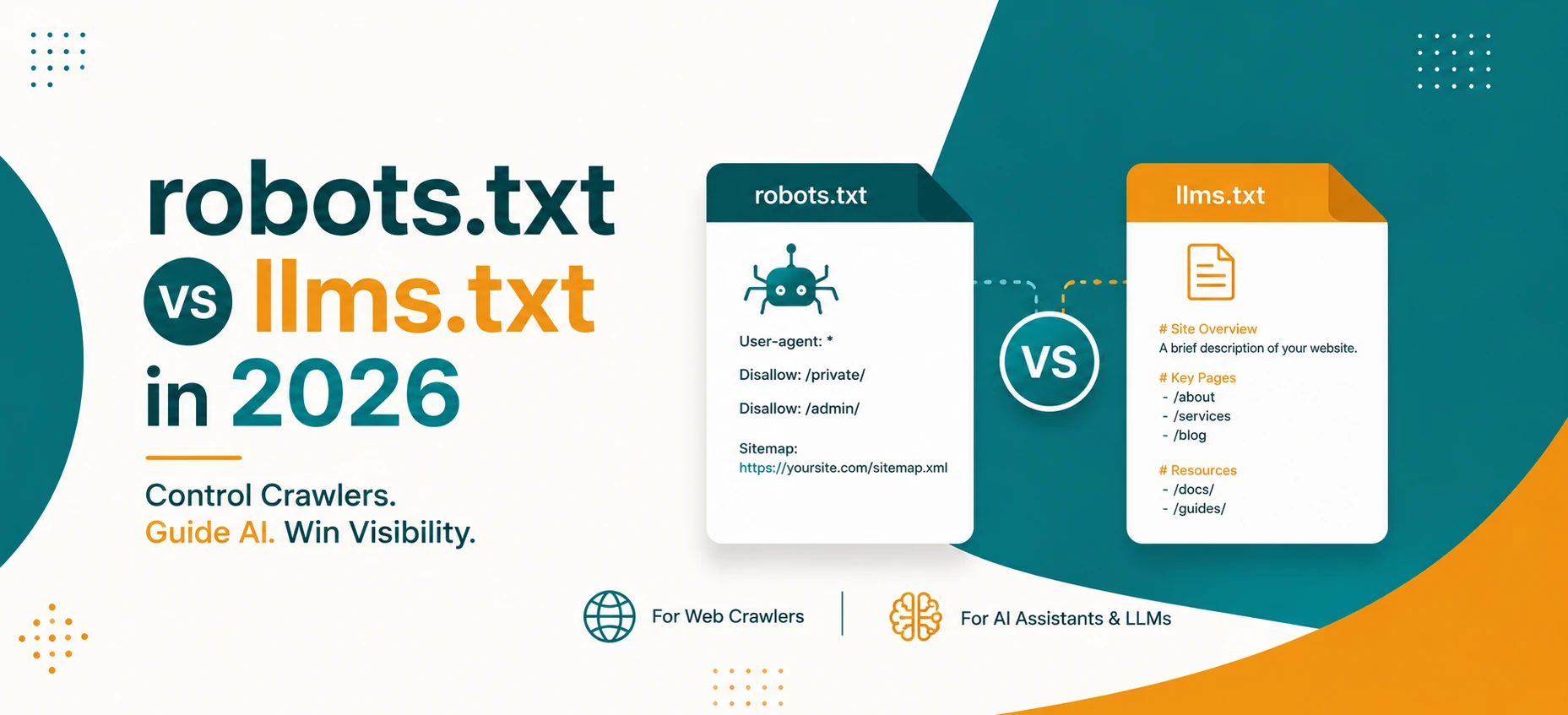
robots.txt vs llms.txt in 2026: What AI Crawlers Actually Use
A practical guide to robots.txt, llms.txt, Google AI features, OpenAI crawlers, snippets, indexing controls, and safe crawler policy in 2026.
Read Guide →
AI Agents and Web Tools: How to Make Your Website Agent-Friendly
A practical guide to making websites easier for AI agents to read, navigate, cite, and use without confusing users or weakening privacy.
Read Guide →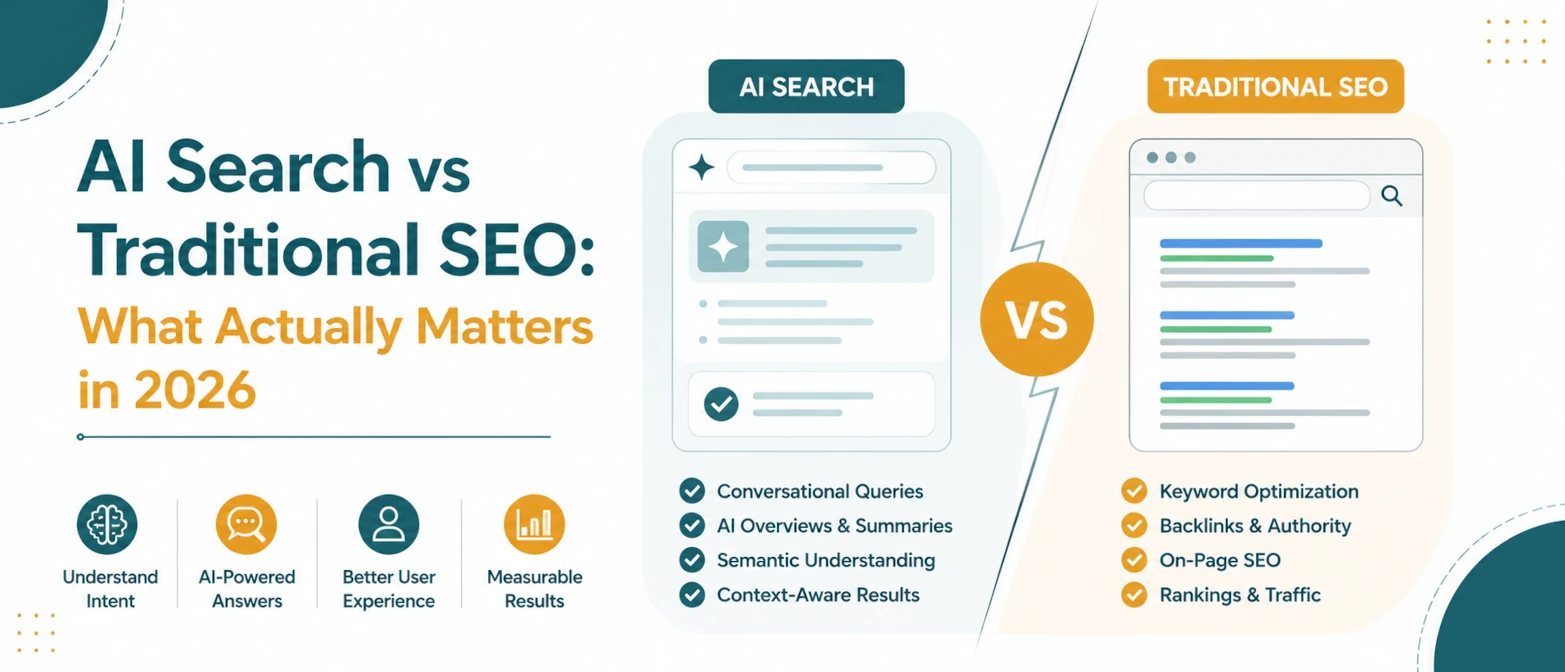
AI Search vs Traditional SEO: What Actually Matters in 2026
A simple guide to what still matters in traditional SEO, what changes for AI search, and how to prepare pages for both in 2026.
Read Guide →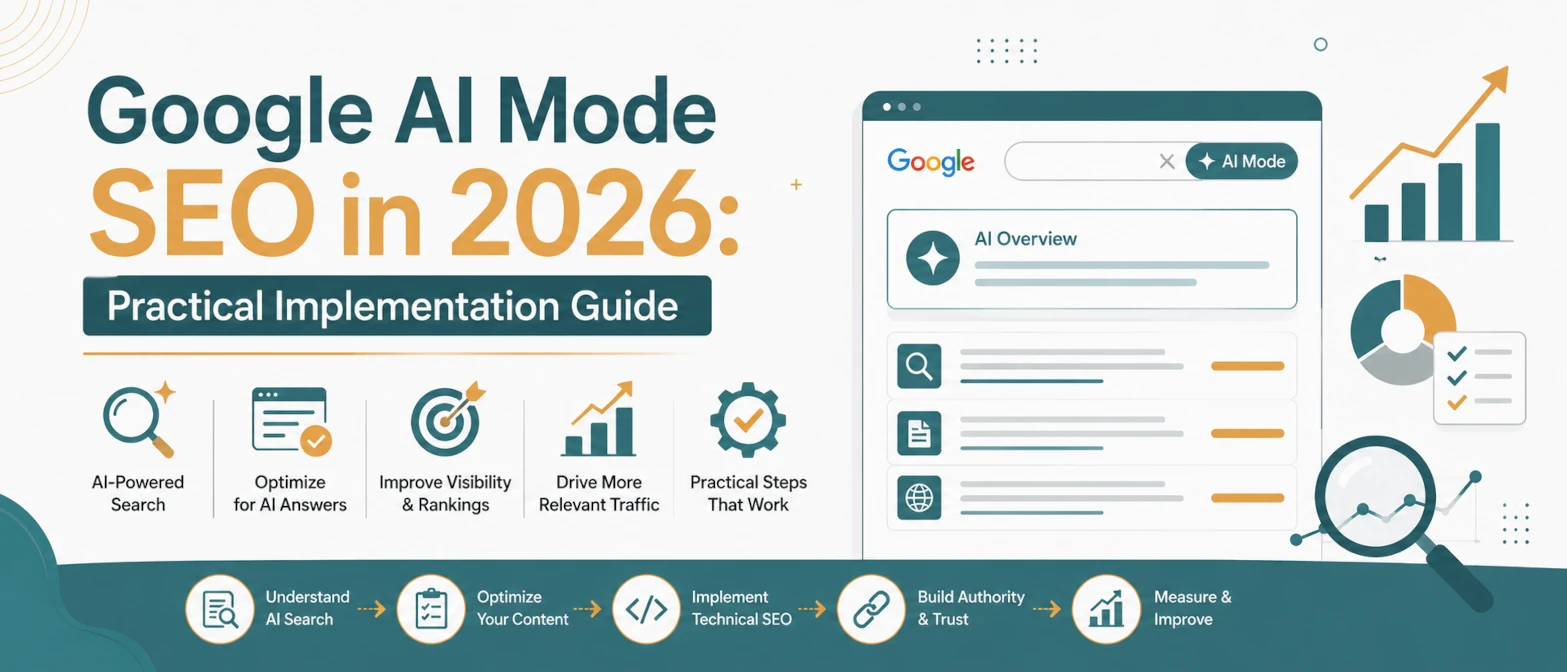
Google AI Mode SEO in 2026: Practical Implementation Guide
A practical AI Mode SEO guide for structuring pages so Google can crawl, understand, extract, and cite clear answers.
Read Guide →
AI Search SEO in 2026: How to Optimize Your Website for ChatGPT, Gemini & Google AI
Learn how AI Search SEO and Generative Engine Optimization help websites appear in ChatGPT, Gemini, Google AI Overviews, Claude, and Perplexity.
Read Guide →