
Exam Photo & Signature Resizer
Resize exam application photos and signatures with simple presets or custom width, height, and KB limits. Files stay in your browser with no server upload. All processing happens locally in your browser.
Photo / Signature Preview
What is Exam Photo & Signature Resizer?
Exam Photo & Signature Resizer is a simple browser-local tool for preparing application photos and signature images for government exams, entrance tests, banking recruitment, teacher eligibility tests, and state PSC forms. It focuses only on the two upload types candidates deal with most often: photograph and signature. The screen stays narrow and practical: choose a preset, upload one image, resize it, and download a JPG for the portal.
Many exam portals reject uploads because the file is the wrong pixel size, the photo is cropped badly, the signature has too much blank paper, or the JPG is above the listed KB limit. After you drop an image, the tool checks the source aspect ratio and makes a quick guess: wide images usually look like signatures, while portrait and square images usually look like photos. This is only a starting point, because the browser cannot know where the actual face or signature is inside a scanned page.
You can override the guess with the Photo and Signature buttons, then adjust the crop manually. Move the crop horizontally or vertically, zoom in or out, and watch the output frame update before resizing. The preview shows the target width and height in pixels, plus the matching cm size when the preset has an official cm requirement. For custom pixel sizes, the cm value is shown as an approximate print size at 300 DPI.
The tool runs entirely in your browser, requires no server upload, and data never leaves your device. Your selected image is decoded in the browser, resized on a Canvas, compressed as a JPG, and downloaded back to your computer or phone. That privacy model is important because exam photos and signatures are identity files, not ordinary design images.
How to use Exam Photo & Signature Resizer
- Open the latest official notification or upload screen for your exam and note the required photo or signature size.
- Choose the closest preset, such as SSC CGL 2026 Signature, CTET Photo 2026, CTET Signature 2026, GATE Photo 2026, Banking Photo, or Banking Signature.
- Upload your photograph or signature image. The tool guesses whether it looks like a photo or signature and applies a matching preset.
- If the guess is wrong, click Photo or Signature manually and choose the correct preset.
- Adjust width, height, minimum KB, maximum KB, crop mode, crop position, zoom, or JPG quality if your exam has a different requirement.
- Click resize, download the JPG, and confirm the final dimensions and KB size before uploading it to the exam portal.
For photos, auto crop usually works best because exam portals often expect a fixed portrait frame. For signatures, fit inside with a white background usually works better because the full signature should remain visible and readable. The manual crop controls are useful when a scan contains extra page space, when the face is off-centre, or when the signature sits in one corner of the source image.
Examples
| Need | Preset or setting | Expected output |
|---|---|---|
| CTET September 2026 photo | CTET Photo 2026 | JPG photo at 413 x 531 px, targeting the 10KB to 100KB range |
| CTET September 2026 signature | CTET Signature 2026 | JPG signature at 413 x 177 px, targeting the 3KB to 30KB range |
| SSC CGL 2026 signature | SSC CGL 2026 Signature | JPG/JPEG scanned signature at about 6.0 cm x 2.0 cm, targeting 10KB to 20KB |
| SSC CGL 2026 photograph | Use SSC live capture | The SSC CGL 2026 notification asks candidates to capture the photo live in the application module, not upload an old photo file |
| Banking-style photo upload | Banking / RBI Photo | JPG photo at 200 x 230 px, targeting common 20KB to 50KB guidance |
| Banking-style signature upload | Banking / RBI Signature | JPG signature at 140 x 60 px, targeting common 10KB to 20KB guidance |
These examples are starting points. Exam upload rules can change by year, post, category, and portal update. Always compare the final file with the latest official notification before final submission.
Use cases
- Resize a recent candidate photograph for an exam application form.
- Compress a scanned signature into a strict KB range without uploading it to a server.
- Prepare CTET, GATE, banking, SSC-style, and state PSC photo or signature files from one simple screen.
- Convert PNG or WebP source images into JPG/JPEG when the portal accepts only JPG uploads.
- Manually enter width, height, and KB limits when a new notification has a different specification.
- Check the crop area in both pixels and centimetres before downloading.
- Override photo/signature detection when the full source image shape does not match the actual content inside it.
For SSC CGL 2026, use the SSC CGL 2026 notification guide to confirm the live photo and signature instructions. If you need CTET-only pages with official September 2026 explanation, use CTET Photo and Signature Resize 2026. For a general photo-only task, use Passport Photo Resizer. For a general signature-only task, use Signature Resizer.
Validation checklist
- Check that the downloaded file is JPG or JPEG if the portal asks for JPG/JPEG.
- Check the final pixel width and height shown by the tool.
- Check the final KB size in your file manager before upload.
- Make sure the face is clear, recent, and not cropped too tightly.
- Make sure the full signature is visible, dark enough, and not touching the edges.
- Upload the file to the portal and confirm the preview looks correct before final submission.
Privacy and data handling
Exam Photo & Signature Resizer uses local browser processing. Your image is read in the browser tab, drawn to a Canvas at the selected dimensions, compressed as JPG, and downloaded from your device. It requires no server upload, and data never leaves your device. TryFormatter does not store your photo, signature, application number, file name, or output image.
This matters for candidates because application photos and signatures may be matched with admit cards, attendance sheets, identity checks, or portal records. Avoid using unknown upload-based tools for these files when a local browser workflow can do the job. If you are on a shared computer, download the final file, clear the selected image, and close the tab when finished.
Common mistakes
The most common mistake is using a generic image resizer and checking only the visual result. A photo can look fine but still fail because it is 102KB when the portal allows only 100KB, or because it is square when the portal expects a portrait frame. Another common mistake is trusting auto-detection without checking the crop. If you upload a full page scan that contains a small signature, the image may be wide or tall for reasons unrelated to the signature itself. Always check the output frame and move the crop manually when needed.
Do not rely on old screenshots or advice from previous exam cycles. If the current notification gives a different width, height, or KB range, enter those values manually in this tool before processing. The best exam upload workflow is simple: verify the official rule, resize locally, download the JPG, and test it in the portal preview.
Frequently Asked Questions
Can I use this for any exam photo or signature?
Yes. Choose a preset when it matches your exam, or manually enter the width, height, minimum KB, and maximum KB from your official notification.
What if auto-detect chooses photo instead of signature?
Click the Signature button manually, choose the correct preset, and use the crop controls to position the signature inside the output frame.
Does this tool upload my photo or signature?
No. It runs entirely in your browser, requires no server upload, and data never leaves your device.
Why does the output download as JPG?
Most exam portals ask for JPG or JPEG uploads. JPG also allows quality adjustment, which helps meet strict KB limits.
What should I do if the file is still above the maximum KB?
Lower the JPG quality slightly, use smaller dimensions if your notification allows it, or start from a cleaner source image with less background detail.
Will the resized file always be accepted by the exam portal?
The tool targets the dimensions and KB range you choose, but final acceptance depends on the current portal validation. Always test the final file in the upload screen before submitting.
Related Tools
Expert Guides & Tutorials
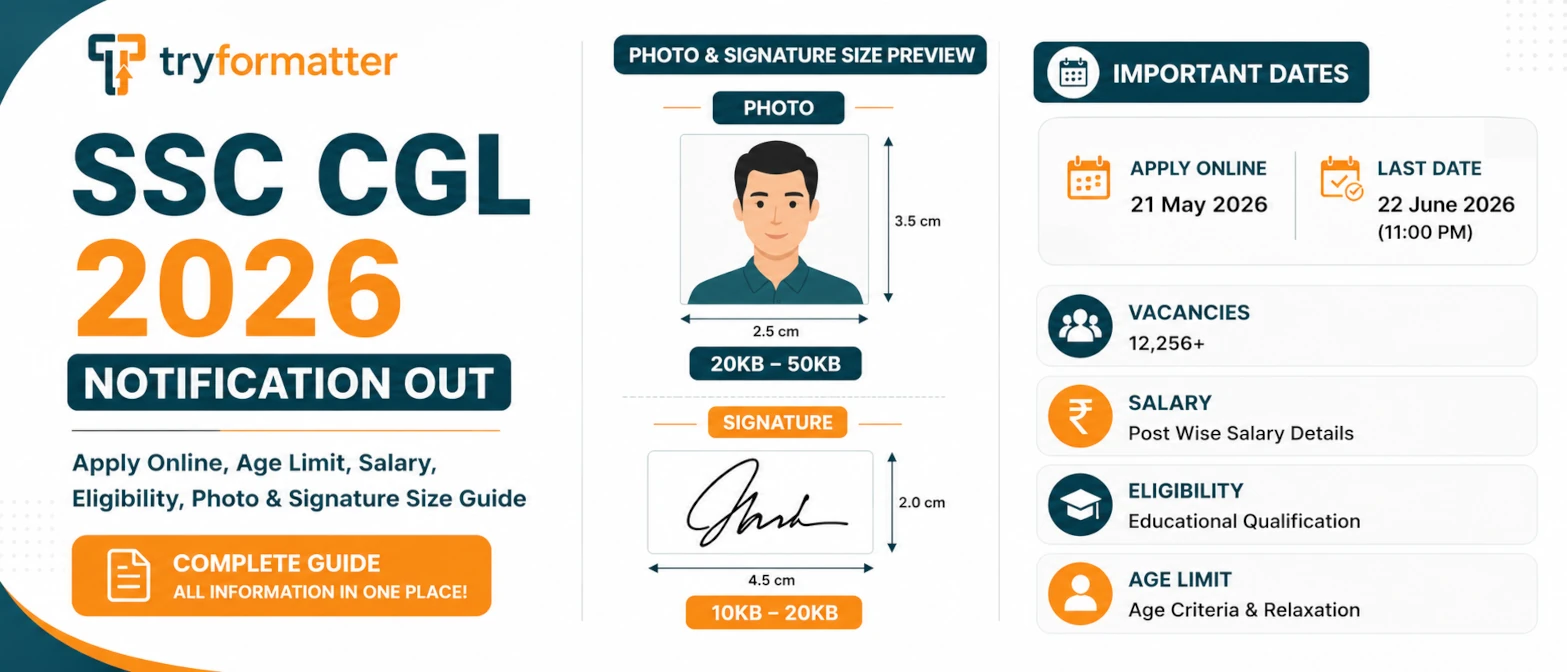
SSC CGL 2026 Notification Out: Apply Online, Age Limit, Salary, Eligibility, Photo & Signature Size
SSC CGL 2026 official notification details with apply online links, approx. 12,256 vacancies, age limit, salary, eligibility, live photo, signature size, and related tools.
Read Guide →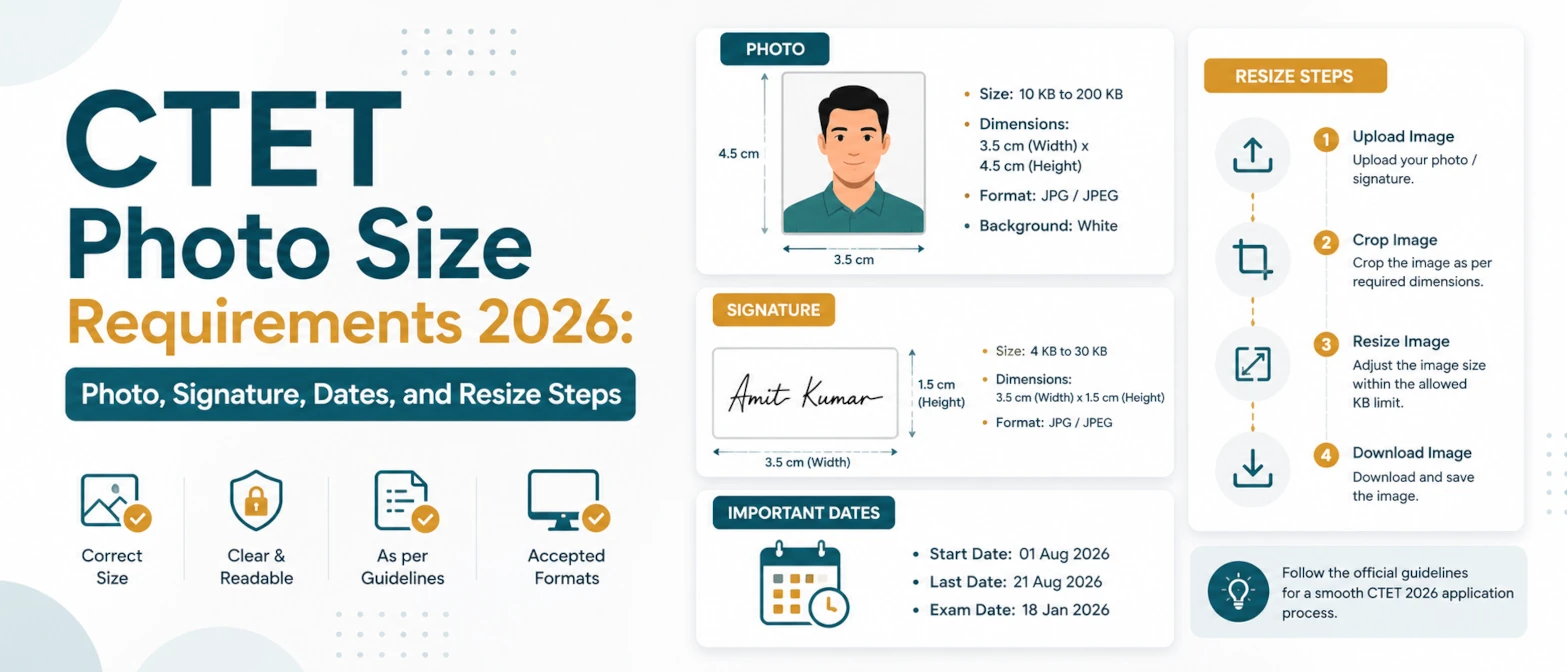
CTET Photo Size Requirements 2026: Photo, Signature, Dates, and Resize Steps
Official CTET September 2026 photo and signature upload sizes, application dates, common rejection reasons, and browser-local resize steps.
Read Guide →