PDF Unlocker Online - Remove PDF Password & Restrictions for Free
Instantly remove password protection and structural locks from a PDF file. Runs entirely within your web browser sandbox, ensuring your decryption passwords and document contents remain 100% private and never touch the cloud. All processing happens locally in your browser.
Credentials
On-Device Decryption
Decryption keys and document contents remain in local RAM sandbox. Your password never leaves your device.
What is the PDF Unlocker?
The PDF Unlocker is a browser-local security utility designed to decrypt and remove passwords from your PDF files without uploading documents to remote servers. If you have a password-protected PDF that you own or have authorization to view, and you want to strip away its password restriction so that you can open, read, edit, or print it without typing the password every time, this secure browser tool provides the perfect serverless solution. It runs entirely within your device's sandbox memory, meaning your document contents and your decryption password are never transmitted over the internet.
Please note that this utility requires you to know the correct password of the PDF file to decrypt it. It is not a brute-force cracking tool; rather, it is a convenient, privacy-first management tool that helps you remove security blocks from documents you have legitimate access to, such as bank statements, mobile invoices, and legal archives.
How to use the PDF Unlocker
Removing owner or user passwords from your PDF documents takes only a few seconds. Follow these simple steps:
- Choose your protected PDF: Drag and drop your file into the secure workspace, or click "Upload File" to browse your local device.
- Input the PDF password: The tool will automatically detect if the document is encrypted and prompt you with a password field. Enter the correct password.
- Unlock the file: Click the "Unlock PDF" button. Our client-side script parses the PDF binary data, authenticates the decryption token, and strips the security layer.
- Save your unlocked PDF: The browser will immediately download the new copy of your document, which can now be opened without any password prompt.
Use cases for removing passwords from PDFs
Removing passwords makes documents more accessible and easier to integrate into automated file systems. Common situations include:
- Archiving financial statements: Bank statements, utility bills, and tax returns are often issued with password locks. Stripping these passwords makes archiving and search indexing much simpler.
- Preparing files for merging or compression: Encrypted PDFs cannot be modified by online editor tools. You must remove the password before merging pages or compressing the file size.
- Enabling printing and copying: Some PDF locks restrict printing or text copying. Unlocking the PDF removes these usage permissions, allowing you to print or extract text freely.
- Sharing documents with teams: If you are sharing a project proposal internally, removing individual passwords saves team members time and avoids password-sharing security risks.
Examples of PDF security states
PDF documents can have different levels of security locks. Our tool handles them as follows:
- User / Open Password: This blocks anyone from opening the file without the password. Our tool prompts you for the password, decrypts the contents locally, and exports a copy that opens instantly.
- Owner / Permissions Password: This limits specific operations (like copying text, printing, or form filling). Decrypting the file with the owner credentials removes these permissions blocks completely.
- Unencrypted / Already Unlocked: If you upload a PDF that is not protected, the tool will instantly notify you that the file is already open and requires no decryption.
Privacy and data handling
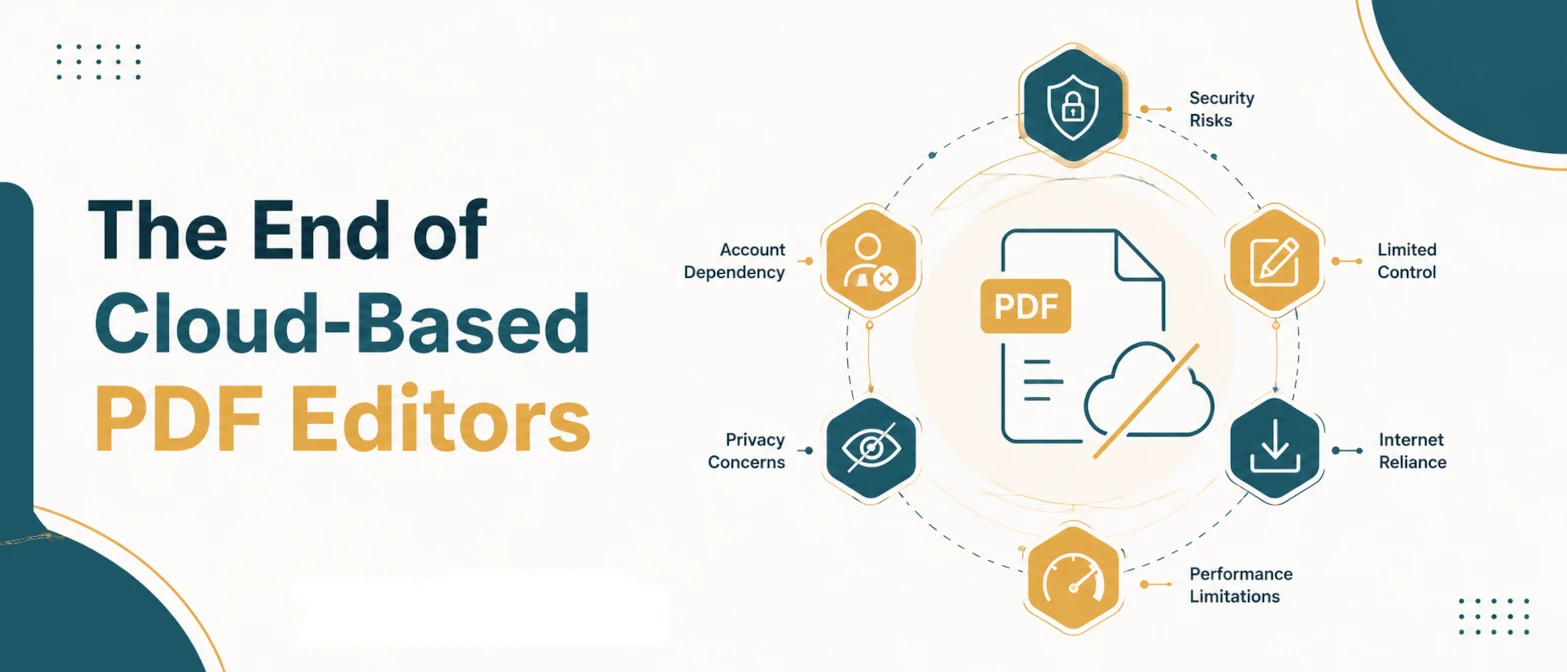
At TryFormatter, your digital safety is our primary engineering goal. Traditional web-based PDF editors require you to upload your protected document—along with the decryption password—to their servers. This means your personal invoices, medical transcripts, or sensitive corporate databases are exposed to remote logs. **Our PDF Unlocker runs 100% locally in your browser.** By using client-side JavaScript compilation through pdf-lib, decryption occurs within your device CPU. **Your documents and passwords never leave your computer.** The tool operates entirely within your browser's private sandbox, ensuring compliance with strict compliance standards (HIPAA, GDPR, CCPA). You can even load the tool page, turn off your internet connection, and unlock your files offline.
Common mistakes when unlocking PDFs
To avoid processing errors or security issues, pay attention to these common document handling mistakes:
- Entering a temporary viewer password: Some corporate portals issue single-use viewer passwords. Make sure you use the permanent master password to ensure the file can be decrypted and saved as a clean copy.
- Confusing brute-force with decryption: This tool cannot unlock a PDF if you do not know the password. Always verify the correct credentials before attempting to remove the password.
- Exposing the unlocked file in insecure public folders: Once a PDF has its password removed, anyone who accesses the file can read it. Keep unlocked files stored in secure, encrypted local directories or devices.
Frequently Asked Questions
Does this tool upload my password-protected file to a server?
No. The PDF Unlocker operates entirely inside your local browser memory using advanced client-side JavaScript. Neither your files nor the passwords you enter are ever sent to our servers.
Can this tool crack a PDF password if I forgot it?
No. This utility is designed for users who know the password and wish to remove the protection for convenience. It does not perform brute-force or cracking actions.
What is the difference between a user password and an owner password?
A user password restricts opening the file. An owner password restricts changes, copying, or printing. Our tool removes both types of locks as long as the correct credentials are provided.
Can I unlock multiple PDFs at once?
To maximize browser memory performance and prevent sandbox tab crashes, this tool processes one PDF file at a time. You can unlock documents one after another in a few seconds.
Will unlocking a PDF change its contents or quality?
No. Unlocking simply decrypts the binary stream and updates the security catalog of the document. The text, layout, images, and formatting of your PDF remain completely unchanged.