
Convert Screenshot to Text Using AI (OCR Online Free)
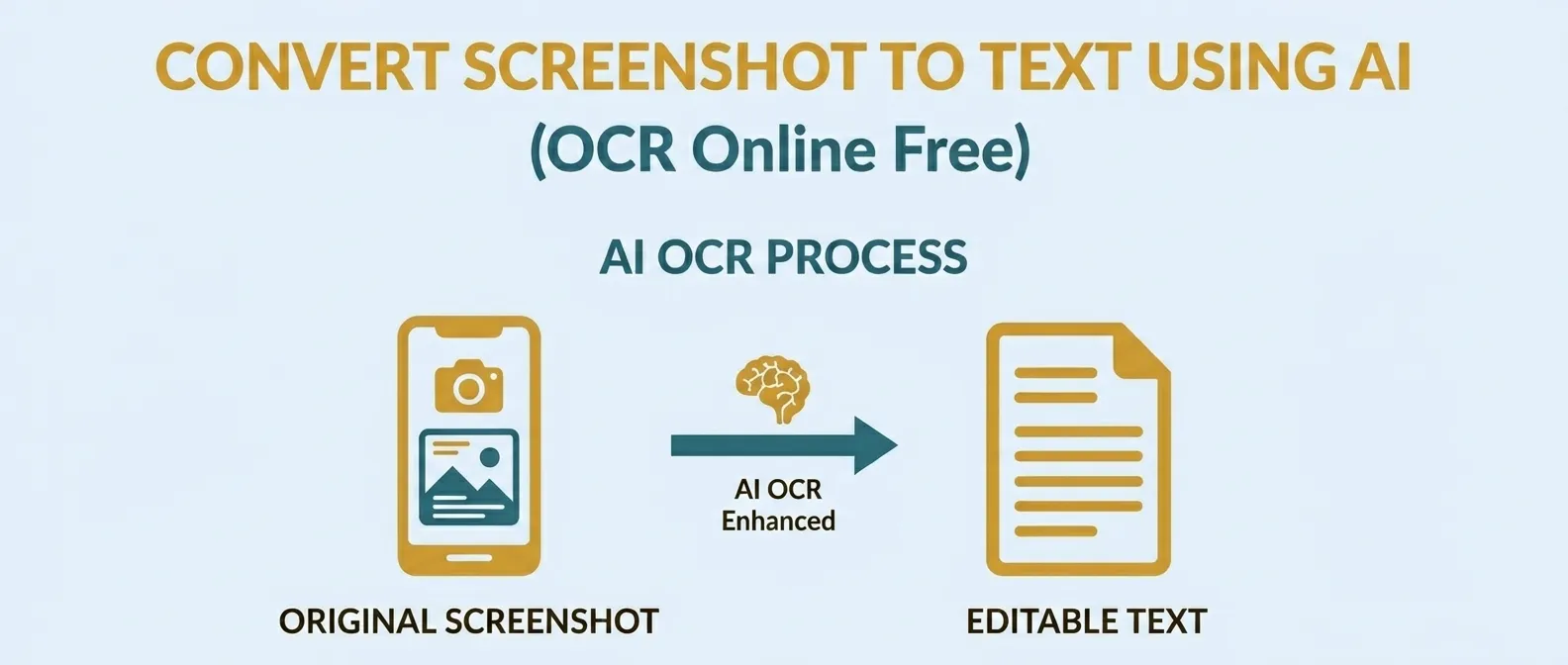
Have you ever found yourself manually typing out text from a screenshot, a PDF that won't let you highlight, or a photo of a physical document? It is a tedious, time-consuming task that often leads to typos and frustration. Fortunately, modern technology has a solution: AI-powered OCR (Optical Character Recognition).
With the right tools, you can convert screenshots into editable text in a matter of seconds. In this comprehensive guide, we will explore how OCR works, why browser-native processing is the safest way to extract data, and how you can use TryFormatter’s free tool to streamline your workflow.
What exactly is OCR (Image to Text)?
At its core, OCR is a technology that takes an image containing text—whether it is a digital screenshot or a physical photo—and translates those visual characters into machine-encoded text that you can edit, search, and copy. While early OCR systems relied on simple pattern matching (comparing pixels to a database of known fonts), modern "AI OCR" uses deep learning and neural networks.
This "Artificial Intelligence" aspect allows the software to understand context, recognize different languages, and even handle distorted or blurry text with remarkable accuracy. Whether it is a snippet of code from a tutorial video, an invoice from a supplier, or handwritten notes from a meeting, OCR is the bridge between the visual world and the digital text world.
How AI OCR Differs from Traditional Methods
Traditional OCR often struggled with complex layouts or "noisy" backgrounds. If the contrast wasn't perfect, the tool would return gibberish. AI-powered engines like Tesseract.js (which we use here at TryFormatter) treat the image more like a human eye does. It looks for shapes, strokes, and relative positions to determine what a character is, making it far more resilient to variations in font and image quality.
How to Convert Screenshot to Text: A Step-by-Step Guide
Extracting text shouldn't be complicated. Here is how you can use TryFormatter’s online OCR tool to get the job done in three simple steps:
Step 1: Upload or Paste Your Screenshot
We provide two ways to get your image into the engine. You can click the upload box to browse your files, or simply drag and drop a JPG, PNG, or WebP file onto the page. However, the real "pro tip" for productivity is using Ctrl + V. If you take a screenshot using your operating system (like Snipping Tool on Windows or Cmd+Shift+4 on Mac), it is saved to your clipboard. Simply press paste on our tool page, and the image appears instantly.
Step 2: Let the AI Detect the Language
While English is the default, our tool supports Hindi (Devanagari script) as well. If your image contains both languages, select the "Auto-Detect" mode. This tells the AI to run multiple language models simultaneously, ensuring that special characters and scripts are recognized correctly. This is particularly useful for Indian users dealing with bilingual government documents or local business receipts.
Step 3: Extract, Copy, and Use
Click the "Extract Text" button. You will see a live progress bar as the engine analyzes the pixels locally on your device. Once finished, the text appears in a clean, editable text area. You can then click "Copy" to put it back into your clipboard or "Download TXT" to save it as a permanent file on your computer.
Ready to try it? Use our private, browser-native tool to extract text instantly.
Try the Image to Text ToolWhy Browser-Native OCR is the Future of Privacy
Most online OCR tools are "server-side." When you upload an image, it travels across the internet to a remote server, where it is processed and stored. This creates a massive privacy risk. If you are extracting text from a bank statement, a private email, or a piece of proprietary code, you don't want that data sitting on a stranger's server.
TryFormatter uses a secure browser tool approach. Our OCR tool is built using WebAssembly (Wasm), allowing the entire AI engine to download once and then run 100% inside your web browser. Your image never leaves your computer. This isn't just faster because it removes upload times; it is fundamentally more secure. In an era of data breaches, keeping your sensitive documents on your own device is the only way to guarantee 100% privacy.
Top 5 Use Cases for Image-to-Text Conversion
Wondering how OCR can fit into your daily routine? Here are five practical ways our users are saving time every day:
- Copying Code from Video Tutorials: If you are watching a programming video and the teacher doesn't provide a GitHub link, just screenshot the screen and paste it into our OCR tool to get the code instantly.
- Digitizing Physical Notes: Take a photo of your notebook or a whiteboard after a meeting. Use OCR to turn those notes into a digital summary you can share with the team.
- Translating Documents: If you have a document in Hindi that you need to translate, extract the text first using our OCR, then paste that text into a translation service.
- Data Entry for Invoices: Instead of manually typing out long lists of line items from a scanned invoice, extract the text and paste it into Excel or a CSV file.
- Research and Study: Extract quotes from digital textbooks or locked PDFs to include in your essays or research papers without re-typing every word.
Tips for Getting the Best OCR Accuracy
While AI is smart, it still relies on the quality of the input. To ensure you get a 99% accuracy rate, keep these tips in mind:
- Ensure High Contrast: Black text on a white background works best. If the text is very light or the background is cluttered, the AI might miss some characters.
- Avoid Blur: If you are taking a photo with your phone, make sure the camera is focused. Motion blur is the number one enemy of OCR.
- Capture Straight Text: Try to keep the text horizontal. If the screenshot is tilted at a 45-degree angle, the OCR engine might struggle to define the "lines" of text correctly.
- Use High Resolution: A tiny, pixelated thumbnail won't give great results. Standard 1080p screenshots or high-res smartphone photos are ideal.
Is it Really Free?
Yes. TryFormatter is committed to providing high-quality developer and utility tools without paywalls. Because our tools run on your computer (not our servers), we don't have to pay for expensive cloud computing for every extraction. This allows us to keep the tool 100% free, forever, with no limits on how many images you can process.
Frequently Asked Questions
For standard printed text in English or Hindi, the accuracy is typically between 95% and 99%. Handwritten text or very low-resolution images may have lower accuracy.
Currently, our tool supports image formats (JPG, PNG, WebP). If you have a PDF, you can take a screenshot of the page and paste it here to extract the text.
It can recognize clear, block-style handwriting, but cursive or messy handwriting is difficult for most OCR engines to decode accurately.
No. The entire engine runs in your web browser. You don't need to download any software or browser extensions.
Nothing. Since the data never left your device's memory to begin with, once you close the tab or refresh the page, the image and the extracted text are completely gone.
Conclusion
Converting screenshots to text is no longer a chore for specialists. With AI OCR, it is a tool for everyone—from students and researchers to developers and office workers. By using a browser-native tool like TryFormatter, you get the speed of AI with the security of local processing.
Stop typing and start extracting. Give our Image to Text Tool a try today and see how much time you can save.