Rotate an Image Online
Rotate a JPG, PNG or WebP image left, right, upside down, or by a custom angle. Preview the result, choose an output format, and download the rotated image. All processing happens locally in your browser.
Rotate an Image Online
Drag and drop your JPG, PNG, or WebP photo here, or click to select from your device.
Your selected image is processed inside your browser.
The selected image is not uploaded to TryFormatter for processing.
What is an image rotation tool?
An image rotation tool changes the direction of a photo, graphic, screenshot, or scanned page. You can turn an image left, right, upside down, or rotate it by a custom angle without opening a full photo editor.
How to rotate an image
- Choose an image: Drag a JPG, PNG, or WebP file into the upload area or select Browse Files.
- Select a rotation: Choose 90° Left, 90° Right, 180°, or enter a custom angle between -360° and 360°.
- Adjust the canvas: For custom angles, choose whether to expand the canvas or keep the original canvas size.
- Choose the output: Keep the original format or select JPG, PNG, or WebP. Adjust the background and quality options when available.
- Preview and download: Review the rotated image and select Download Rotated Image.
Rotate left, right, or 180 degrees
Standard right-angle rotations adjust orientation predictably without distorting edge pixel alignment:
90° Rotation
Turns the image one quarter of a full circle (left counter-clockwise or right clockwise). Width and height dimensions are swapped.
180° Rotation
Turns the image upside down. The width and height dimensions stay exactly the same because the rectangular shape is preserved.
Dimension Scaling
For example, an image that is 1200 × 800 pixels becomes 800 × 1200 pixels after a 90° or 270° rotation.
How custom-angle rotation works
Custom rotation lets you enter an angle such as 5°, -15°, or 45°. Positive and negative values rotate the image in opposite directions.
Rotating by an angle other than 90°, 180°, or 270° creates empty space around the tilted image. The tool can handle this space in two ways:
Expand Canvas
Increases the output canvas dimensions so the complete rotated image remains visible without clipping corners.
Crop to Original Bounds
Keeps the original canvas width and height, cropping any part of the tilted image that extends outside.
Transparent and solid canvas backgrounds
Custom-angle rotation can create empty corners around the image. You can leave these areas transparent or fill them with white, black, or another colour.
- PNG & WebP: Full support for transparent background corners created during custom-angle rotations.
- JPG / JPEG: JPG does not support transparency, so empty corner areas are automatically filled with a solid background color.
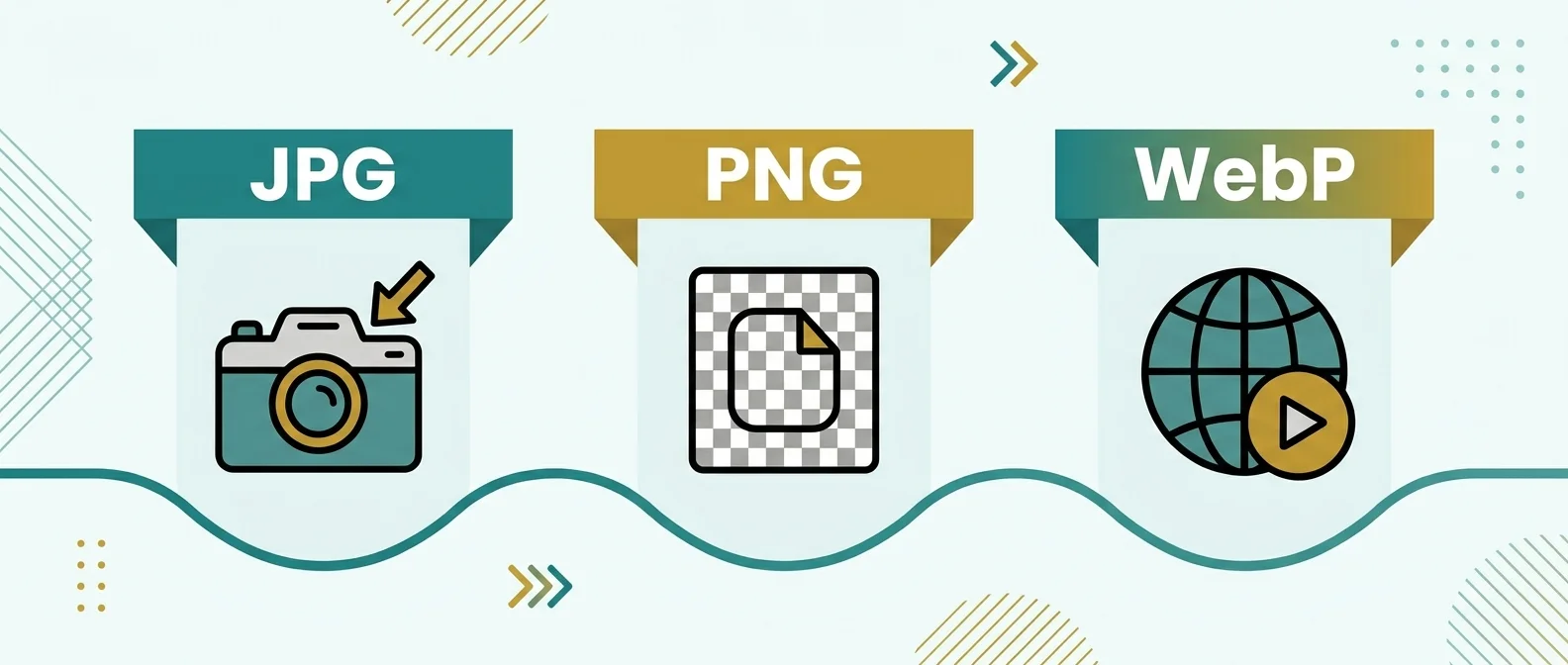
JPG, PNG, and WebP output
You can keep the original image format or save the rotated image in another supported format:
JPG & JPEG
Suitable for photos. Quality controls allow balancing visual sharpness and output file size.
PNG Format
Ideal for screenshots, logos, and diagrams requiring crisp edges and transparent backgrounds.
WebP Format
Lightweight modern format supporting photos, graphics, and transparency for web performance.
Does rotating an image affect quality?
Rotating by 90°, 180°, or 270° usually keeps the image looking close to the original because pixels are repositioned without recalculation.
A custom angle requires the browser to recalculate pixels along tilted edges, which may make fine text or thin lines appear slightly softer.
Rotate versus flip
Rotation and flipping change an image in different ways:
- Rotation: Turns the complete image around its centre by a selected number of degrees without mirroring.
- Horizontal flip: Creates a mirror image by moving the left side to the right.
- Vertical flip: Turns the image across a horizontal line so the top and bottom exchange positions.
To mirror a selfie or reverse a logo, use the Mirror and Flip Image tool.
Examples and use cases for image rotation
Common examples and practical use cases for rotating images include:
Sideways Phone Photos
Correct a photo that appears in the wrong direction after transfer or camera capture.
Scanned Documents
Turn scanned pages right side up so text is easy to read and index.
Design Alignment
Add a small custom angle to a photo, label, banner, or social media graphic.
Browser processing and privacy
The selected image is processed inside your browser using image and canvas features provided by the browser. The preview, rotation, background fill, and output file are prepared in the current browser session, maintaining local data privacy.
Processing time and available output size depend on the image dimensions, rotation angle, selected format, browser, and device memory. Very large images may use more memory, especially when Expand Canvas is used.
Related image tools
Frequently Asked Questions
How do I rotate an image online?
Choose a JPG, PNG, or WebP image, select 90° Left, 90° Right, 180°, or enter a custom angle. Review the preview and download the rotated image.
Can I rotate an image by a custom angle?
Yes. You can enter an angle between -360° and 360°. For custom angles, you can expand the canvas to keep the full image or keep the original canvas size and crop the outer parts.
What happens to the image size after rotation?
A 90° or 270° rotation swaps the width and height. A 180° rotation keeps the same dimensions. Custom angles may create a larger canvas when Expand Canvas is selected.
Can I keep a transparent background?
Yes. PNG and WebP output can keep transparent corner areas created by custom rotation. JPG does not support transparency and requires a solid background.
Which image formats can I rotate?
You can upload JPG, JPEG, PNG, and WebP images. The rotated result can be saved in the original format or exported as JPG, PNG, or WebP.
Does rotating an image reduce its quality?
Right-angle rotations usually remain close to the original appearance. Custom angles recalculate edge pixels, and JPG or lossy WebP export may introduce some compression changes.
What is the difference between rotating and flipping?
Rotation turns the image around its centre by a selected angle. Flipping mirrors the image across a horizontal or vertical line.
Is my image uploaded to a server?
The selected image is processed inside the browser workspace. Confirm the production network behaviour before adding an absolute claim that no image data is sent to any server or external service.