Reorder by drag and drop
Drag a page, or a whole selection of pages, and drop it between two others. A gold marker shows where it will land.

Drag pages into a new order, rotate or duplicate them, delete the ones you do not need and insert pages from a second PDF. The file is read and rebuilt in your browser, and pages are copied as-is, so text stays selectable.
Drag & drop a PDF here
or choose a file from your device
Overview
Organize PDF lets you change the page order of a PDF by moving thumbnails around, then saves a new file in that order. You can also rotate, duplicate and delete pages, or pull in pages from a second PDF, all from one page grid.
The tool copies each page object from your original file into the new one. It does not take screenshots of the pages, so text stays selectable and searchable, vector drawings stay sharp, and file size usually stays close to the original. Link annotations and comments on a page travel with that page.
What you can do
Drag a page, or a whole selection of pages, and drop it between two others. A gold marker shows where it will land.
Each thumbnail has its own buttons, and the side panel applies the same actions to every selected page at once.
Add a second file and its pages appear after your current selection, labelled F2 so you can tell the sources apart.
How it works
Drop the file onto the upload area or choose it from your device. Thumbnails load as you scroll.
Click a page to select it. Shift+click selects everything between two pages.
Drag pages into place, then rotate, duplicate or delete them. Undo steps back through your changes.
Save the organized PDF. The original file on your device is not changed.
Examples
Each row shows the original page order on the left and the downloaded order on the right.
Reverse page order fixes it in one click.
5, 4, 3, 2, 1
1, 2, 3, 4, 5
Drag page 2 to the end of a six-page agreement.
1, 2, 3, 4, 5, 6
1, 3, 4, 5, 6, 2
Insert page 1 of a second PDF (F2) after page 3.
1, 2, 3, 4
1, 2, 3, F2·1, 4
Under the hood
A PDF page is a set of drawing instructions plus the fonts and images it uses. When you reorder pages here, those instructions are copied into a new document unchanged. Nothing is re-rendered or re-compressed.
Rotation is stored as a page setting rather than redrawn content. That means a rotated page keeps its original page box, and any PDF reader can show it the right way up. A duplicated page gets its own copy of the page entry, so rotating one copy leaves the other as it was.
Use cases
Office scanners often produce double-sided documents as all fronts followed by all backs. Select and drag the back pages into place, or rotate the ones that came out upside down.
1, 3, 5, 2, 4, 6
1, 2, 3, 4, 5, 6
Portals often ask for one PDF in a fixed order: form, ID, certificates. Load the form, insert the other files, and arrange them as the checklist requires.
form.pdf + id.pdf
application.pdf
Duplicate a reference sheet so it appears after every section, or move a summary page to the front of a long report.
12 pages
14 pages
Tips
Limitations
Encrypted PDFs need to be unlocked first with PDF Unlocker, using the password you already have.
The outline panel, fillable form fields and digital signatures are tied to the old document structure. Expect them to be missing or flattened in the rebuilt file, so fill and sign forms after organizing.
The whole file is held in browser memory. Very large scans (hundreds of megabytes) may be slow on phones.
Privacy
The PDF is read, previewed and rebuilt with JavaScript in your browser tab. The page does not send the file to a TryFormatter server. When you close or reload the tab, the copy in memory is gone.
Related tools
Yes. Select the pages (Shift+click selects a range), then drag any one of the selected pages. The whole selection moves together and keeps its internal order.
No. Pages are copied as PDF objects, not converted to images, so text and graphics look the same. The new file is usually close to the original size. Inserting pages from a second file adds that file's fonts and images.
Links and comments placed on a page stay on that page. The bookmarks panel (outline), fillable form fields and digital signatures are not reliably carried over, because they belong to the old document structure. Organize first, then fill or sign.
Select the page that should come before the new pages, then use "Add pages from another PDF". The added pages are inserted right after your selection and stay selected, so you can drag them somewhere else if needed.
Yes. Tab to the page grid, use the arrow keys to move between pages, press Space to select, and press Alt plus an arrow key to move the focused page one position.
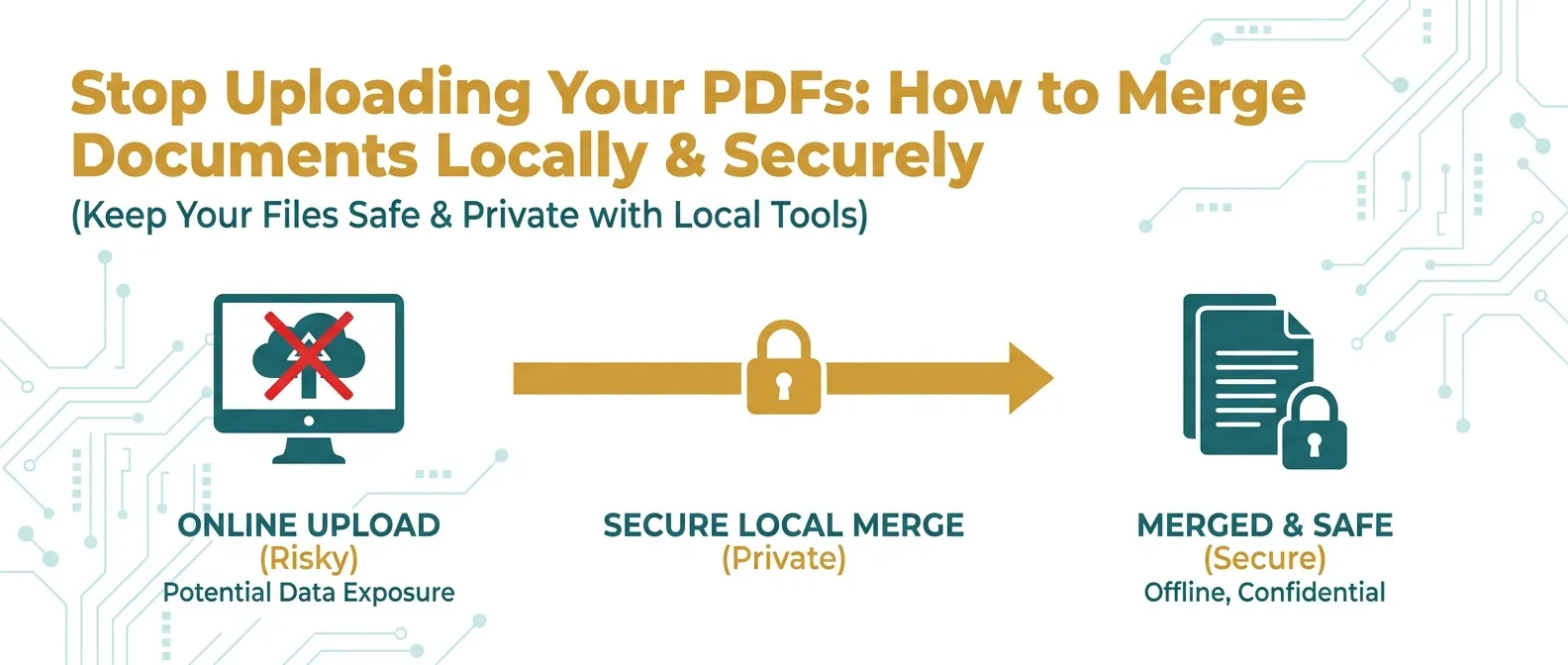
Combining PDF documents can be risky if they contain sensitive data. Learn how to merge PDFs 100% locally in your browser for ultimate privacy.
Read Guide →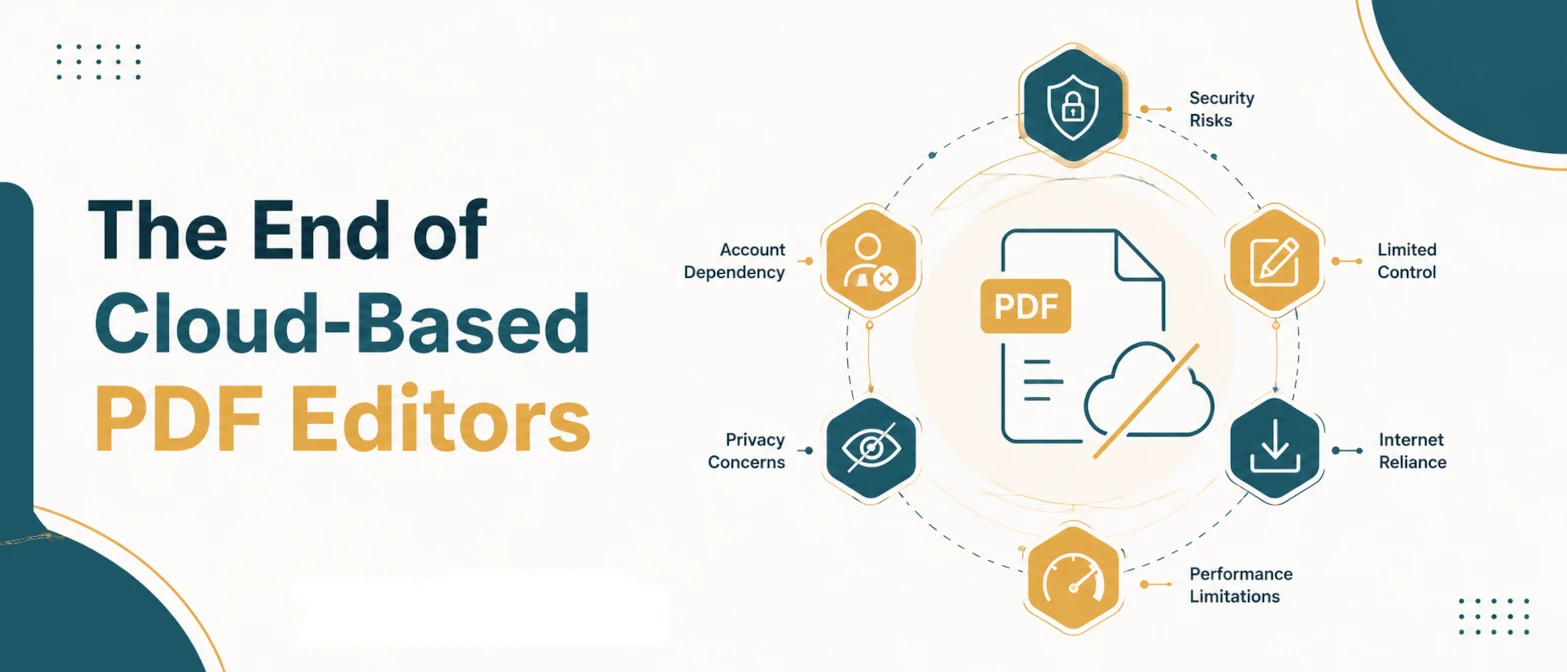
Cloud-based PDF editors expose your sensitive business documents to unnecessary risks. Learn how browser-native WebAssembly tools are replacing legacy server-side PDF processing in 2026.
Read Guide →