
JSON to YAML and YAML to JSON: Secure No-Upload Workflow
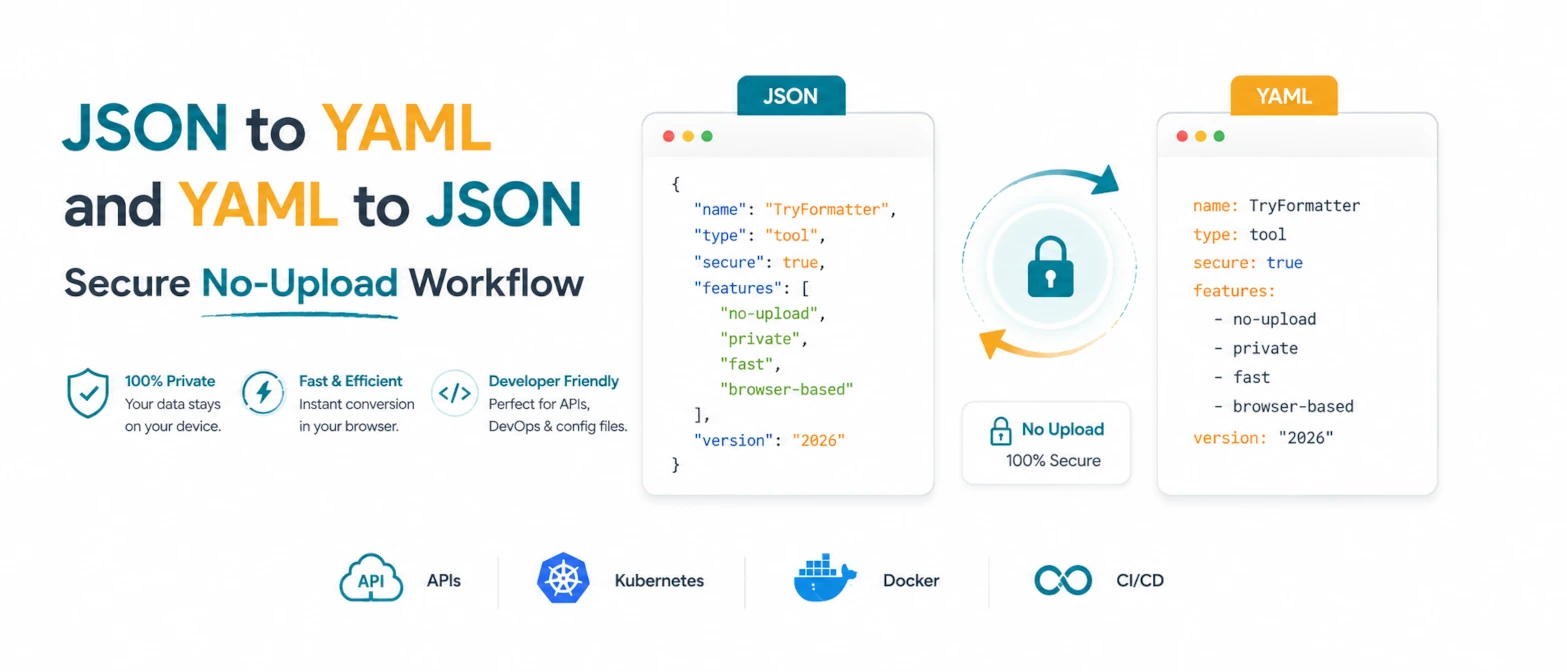
JSON and YAML are two of the most common formats used in developer workflows. JSON is strict and easy for software to parse. YAML is easier for humans to read and edit, especially in configuration files. Most teams move between them constantly: API responses become YAML docs, Kubernetes manifests get checked as JSON, and application settings need to be reviewed before deployment.
The privacy risk is simple. These files often contain service names, internal URLs, environment keys, feature flags, database hints, and infrastructure details. Uploading them to a random converter can expose more than you intended. A safer workflow is to convert locally in the browser, inspect the output, and only then move the cleaned file into your project.
Short Answer
Use a browser-local converter when converting JSON to YAML or YAML to JSON. A no-upload workflow keeps API payloads, Kubernetes files, Docker configs, and private app settings on your device while still giving you fast formatted output.
When to Convert JSON to YAML
JSON to YAML conversion is useful when a machine-generated payload needs to become easier for a person to read. API responses, exported settings, and generated infrastructure objects often arrive as JSON. YAML removes much of the visual noise, so reviewers can scan nested objects, arrays, booleans, and values more comfortably.
Common JSON to YAML workflows include:
- Turning API examples into readable documentation.
- Converting Kubernetes JSON output into YAML manifests for review.
- Preparing Docker Compose style configuration from structured data.
- Cleaning generated config before it is committed to a repository.
When to Convert YAML to JSON
YAML to JSON conversion is useful when a human-authored configuration needs to be passed into software that expects JSON. JavaScript apps, API clients, validation scripts, and many build tools work naturally with JSON objects.
This is also a good way to catch structure problems. If YAML indentation is wrong, lists are nested incorrectly, or a value is not where you expect it, the JSON output makes the real object shape easier to inspect.
Safe Local Workflow
- Remove obvious secrets first: Replace tokens, passwords, and private keys with placeholders before any formatting or sharing step.
- Use the browser-local converter: Paste JSON or YAML into a tool that runs entirely in your browser and requires no server upload.
- Validate the output shape: Check arrays, nested objects, booleans, numbers, and null values before using the result.
- Copy or download locally: Save the converted file from your browser and keep it inside your normal project workflow.
Example: JSON to YAML
Input JSON from an API or configuration export:
{
  "service": {
    "name": "checkout-api",
    "replicas": 3,
    "enabled": true,
    "ports": [80, 443]
  }
}
Converted YAML for review:
service:
  name: checkout-api
  replicas: 3
  enabled: true
  ports:
    - 80
    - 443
The YAML version is easier to scan during a pull request. The nested shape remains the same, but the brackets and quotes are removed where they are not needed.
Example: YAML to JSON
Input YAML from a deployment file:
cache:
  provider: redis
  ttl: 3600
  regions:
    - us-east
    - eu-west
Converted JSON for an API payload or script:
{
  "cache": {
    "provider": "redis",
    "ttl": 3600,
    "regions": [
      "us-east",
      "eu-west"
    ]
  }
}
This makes the data easier to pass into JavaScript, API clients, test fixtures, and schema validators.
Common Mistakes to Check
| Issue | Why It Matters | What to Do |
|---|---|---|
| Mixed tabs and spaces | YAML depends on consistent indentation. | Use spaces only and keep indentation consistent. |
| Unquoted special values | Some values can be interpreted as booleans or numbers. | Quote values that must remain strings. |
| Trailing commas in JSON | Strict JSON does not allow them. | Validate JSON before conversion. |
| Secrets in examples | Config files often contain sensitive data. | Replace secrets with placeholders before sharing. |
Why No Upload Matters
Configuration files are rarely harmless. Even without passwords, they can reveal internal service names, deployment patterns, cloud regions, database structure, or business logic. A no-upload converter reduces that risk because the conversion runs in your browser. The data does not need to travel to a remote server to be transformed.
This is especially important for teams working with client projects, private repositories, staging credentials, or production-like infrastructure files. Local conversion keeps the workflow fast without turning every formatting task into a data-sharing decision.
Useful TryFormatter Tools
Local JSON and YAML workflow
Frequently Asked Questions
It is safer when the conversion runs entirely in your browser and requires no server upload. That keeps private payloads and config files on your device.
No. JSON does not officially support comments. YAML comments can help during editing, but they are not part of the final JSON output.
YAML uses indentation to define structure. If spacing is inconsistent, the parser may read the file differently or reject it.
Yes. Even with no-upload tools, it is a good habit to replace secrets with placeholders before formatting, converting, or documenting config files.
Conclusion
JSON and YAML conversion is a daily developer task, but it should not require sending private configuration data to a server. A browser-local workflow gives you the convenience of an online converter with the privacy of local processing. Use JSON when machines need strict structure, use YAML when humans need readable configuration, and keep the conversion step on your own device whenever the data is sensitive.