Round Image Corners Online
Add smooth rounded corners to a photo, product image, card or graphic. Adjust the radius, background and optional outline, then preview and download the result. All processing happens locally in your browser.
Round Image Corners Online
Round Image Corners Online
Drag and drop your photo or image here, or click to browse
What Is the Round Image Corners Tool?
Round Image Corners softens the sharp edges of a photo, screenshot, logo, or graphic. You can apply the same radius to every corner or adjust the four corners separately.
Rounded images are commonly used for profile photos, product cards, website sections, presentation graphics, and interface screenshots. The tool provides a live preview so you can check the shape, background, and optional outline before downloading the result.
How to Round Image Corners
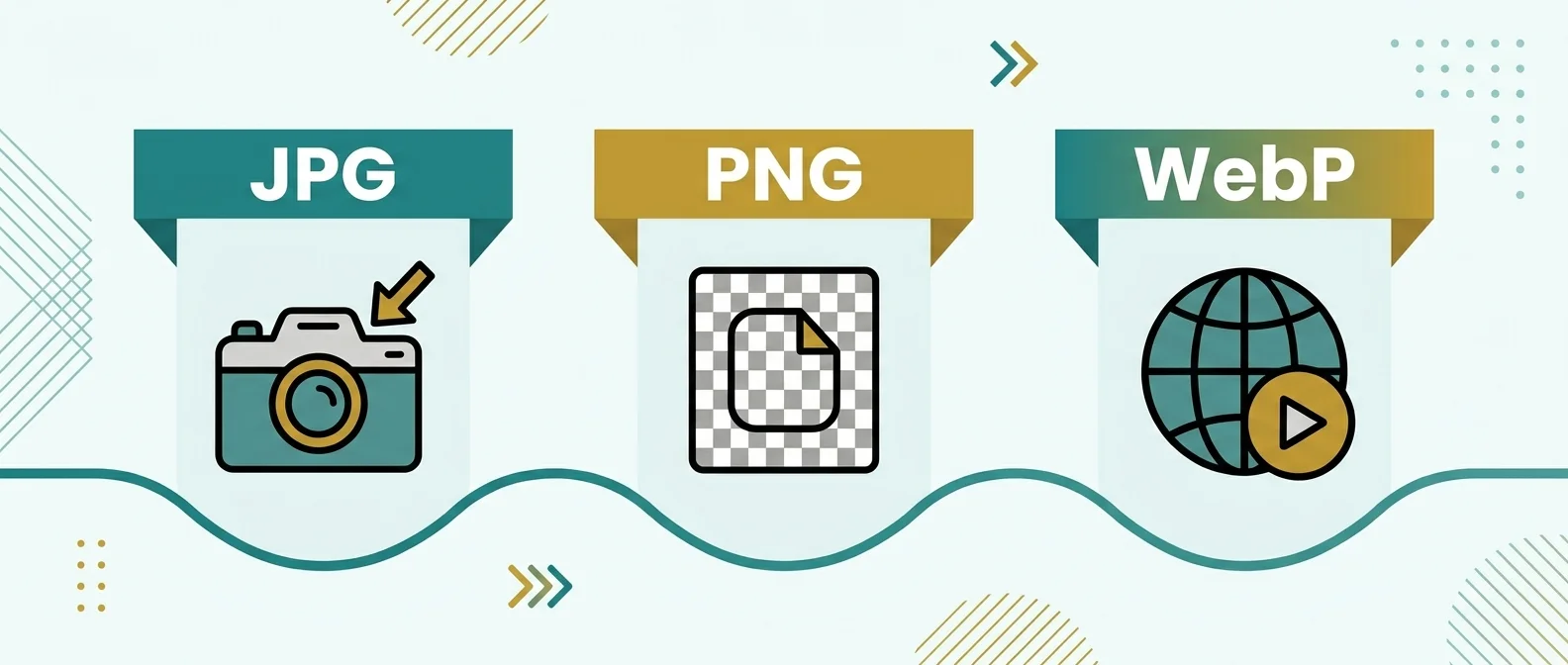
- Choose an image: Upload a JPG, PNG, or WebP file from your device.
- Select a shape: Choose Square, Subtle, Rounded, Fully Rounded, or Circle when those presets suit your image.
- Adjust the radius: Use one value for all four corners or unlink them to control each corner separately.
- Choose a background: Keep the corners transparent or fill them with white, black, or a custom colour.
- Add an outline: Set an optional border width and colour around the rounded image.
- Preview and download: Review the result, select JPG, PNG, or WebP, and download the finished image.
Uniform and Individual Corner Radius
A uniform radius applies the same curve to the top-left, top-right, bottom-right, and bottom-left corners. This creates a balanced shape and works well for cards, product images, screenshots, and standard photo frames.
Individual corner controls let you create an uneven shape. For example, you can round only the top corners of an image used inside a card, or round two opposite corners for a decorative layout.
Use linked mode when every corner should remain equal. Unlink the controls when you need to enter a different value for each corner.
Examples: Rounded Rectangles, Pills, and Circles
The final shape depends on the image dimensions and selected radius.
- Rounded rectangle: Uses a small or medium radius while keeping the original rectangular proportions.
- Pill shape: Uses a large radius on a wide or tall image, creating rounded ends.
- Circle: Uses a square image or square crop with a maximum radius to create a round result.
A non-square image cannot become a true circle without first being placed inside or cropped to a square canvas. Check the preview to confirm how the Circle preset handles the source image.
Transparent and Solid Corner Backgrounds
Rounded corners remove the image pixels outside the selected curve. Those corner areas can remain transparent or use a solid background colour.
Transparent corners are useful when the image will be placed over a coloured page, design, or dark-mode interface. Use PNG or WebP output when transparency must be preserved.
A solid background works well for documents, presentations, email graphics, and JPG output. Choose white, black, or a custom colour that matches the destination design.
JPG does not support transparent pixels. When JPG is selected, the empty corner areas must use a solid background.
Adding an Outline Around the Image
An outline can separate a rounded image from the surrounding page or background. It is particularly useful when a light image is displayed over a light page or a dark image is placed on a dark interface.
Choose an outline colour that remains visible without distracting from the image. A thin outline usually works well for profile pictures and interface cards, while a wider outline can create a framed appearance.
The outline follows the selected corner shape. Review all four corners before exporting, especially when individual radius values are used.
Will the Image Dimensions Change?
Applying rounded corners normally keeps the original canvas width and height. The pixels outside the corner curves become transparent or are replaced by the selected background colour.
The dimensions may change when a preset performs an additional square crop or creates a new canvas. For example, a Circle preset may use a square area based on the source image and crop content outside that area.
Check the displayed output dimensions before downloading when the exact pixel size is important.
Choosing JPG, PNG, or WebP Output
- PNG: Suitable for graphics, screenshots, logos, and images that need transparent corners.
- WebP: Supports photographic images, graphics, and transparent corner areas for modern web use.
- JPG and JPEG: Suitable for photos with a solid corner background. JPG cannot preserve transparency.
Changing the output format can affect transparency, file size, and image appearance. Keep the original file when you may need to edit the image again later.
Use Cases for Rounded Images
- Profile photos: Create circular or softly rounded avatars for account pages and team directories.
- Product cards: Match product photos with the corner style used by a website or application.
- Interface screenshots: Soften window and panel edges before adding screenshots to documentation or presentations.
- Marketing graphics: Prepare rounded photos for banners, announcements, and social media designs.
- Portfolio images: Apply a consistent shape and outline to several project previews.
Privacy and Browser Processing
The selected image is processed inside the browser workspace while the corner mask, background, outline, preview, and output file are prepared.
Processing time depends on the image dimensions, selected output format, browser, and available device memory. Large images may take longer to preview and export.
Related Image Tools
Frequently Asked Questions
How do I round the corners of an image?
Choose a JPG, PNG, or WebP image, select a corner preset or adjust the radius, choose the corner background, review the preview, and download the result.
Can I set a different radius for each corner?
Yes. Unlink the corner controls to adjust the top-left, top-right, bottom-right, and bottom-left corners separately.
Can I create a circular image?
Yes. A true circle requires a square image or square crop with a maximum corner radius. Use the Circle preset and check the preview before downloading.
Will the original image dimensions change?
Rounded corners normally keep the original canvas dimensions. A circle or square-crop preset may change the output dimensions, depending on how that preset is implemented.
Can the corner areas remain transparent?
Yes. PNG and WebP can preserve transparent corner areas. JPG does not support transparency and requires a solid background colour.
Can I add an outline around the image?
Yes. You can enable an outline and adjust its width and colour. The outline follows the selected rounded-corner shape.
Which image formats are supported?
The tool supports JPG, JPEG, PNG, and WebP images when those formats are enabled in the workspace. Results can be exported as JPG, PNG, or WebP.
Is my image uploaded to a server?
The selected image is processed inside the browser workspace. Use a stronger no-upload statement only after confirming the production network behaviour.