
AI Data Mapper Online Free - Secure No Upload
Map CSV rows into clean JSON in your browser. Local mode creates a private flat JSON array with no TryFormatter upload. Optional API key mode helps with harder jobs such as grouping repeated rows, creating nested item arrays, renaming fields, and following a target schema instruction. All processing happens locally in your browser.
What is AI Data Mapping?
AI Data Mapping helps turn tabular rows into JSON that is easier to use in apps, APIs, imports, migrations, and database seed files. Paste CSV with a header row, describe the target shape, and generate structured output from the source rows.
Local mode runs entirely in your browser and creates a clean flat JSON array with no server upload. Optional API key mode is for harder mapping tasks such as grouping repeated order rows, creating nested item arrays, renaming fields, or following a schema instruction written in plain English.
How to use AI Data Mapping
- Paste CSV or sample rows into the source editor.
- Write a mapping instruction such as group by OrderID and create an items array.
- Run local mode for flat JSON or add your own API key for grouped nested output.
- Review the JSON, then copy or download it for your next workflow.
Examples
1. Flat CSV cleanup
Input: CSV rows with headers. Output: a flat JSON array created locally in the browser.
2. Order rows to nested JSON
Input: repeated order rows. Output: one order object with an items array when using API key mode.
3. Schema rename
Input: legacy column names. Output: cleaner JSON keys that match your app model.
Use cases
- Database seeding: prepare small JSON seed files from spreadsheet exports.
- Migration planning: test how old CSV columns should map into a new API shape.
- Order and invoice cleanup: group repeated line-item rows into clearer parent objects.
- JSON review: inspect a mapped sample before formatting or importing it.
Privacy and API key behavior
The local CSV mapper runs entirely in your browser, requires no server upload, and your data never leaves your device. If you choose API key mode, the request is sent directly from your browser to OpenAI using your own key. TryFormatter does not proxy, store, or log the key or source data.
How to use AI Data Mapper
- Paste CSV with a clear header row into the source editor.
- Describe the target shape, grouping rule, or field rename you want.
- Run local mode for flat JSON or optional API key mode for nested grouped output.
- Review the output, then copy or download the JSON file.
After the result appears, check whether the suggested next step matches your goal. If the tool recommends a formatter, converter, validator, or export pattern, review the output before using it in a production workflow.
Examples
These examples show where AI Data Mapper fits into everyday browser-native work. Exact results depend on your input, browser support, local pattern matching, and selected options.
| Input | Action | Output |
|---|---|---|
| Unknown code, copied data, support text, or browser capability signal | Analyze it with AI Data Mapper | A detected format, sentiment signal, mapping plan, or browser runtime detail |
| Messy data from a spreadsheet, ticket, log, or copied page | Inspect the pattern before converting or formatting | A cleaner direction for the next TryFormatter tool |
| Private draft or internal sample | Process locally in the browser workspace | Useful analysis without server upload |
Use cases
- CSV Mapping: Convert clean CSV rows into flat JSON locally with no TryFormatter upload.
- Nested Mapping: Use optional API key mode to group repeated rows into parent objects and item arrays.
- Schema Cleanup: Rename columns and test target JSON shapes before writing a migration script.
- Data Review: Create a small mapped sample before importing into an app, CMS, or database.
AI Data Mapper is useful for developers, analysts, support teams, editors, QA reviewers, and anyone who needs a quick signal before choosing a more specific tool.
Validation checklist
- Check that the input sample is representative of the real data or message you need to process.
- Review confidence, warnings, detected fields, or recommended actions before copying the result.
- Use a formatter, validator, or converter afterward when the output must meet a strict syntax or schema.
- For sentiment and mapping results, manually review edge cases, sarcasm, mixed intent, missing columns, and unusual field names.
- Do not paste secrets, customer data, or private tokens unless the browser-local workflow is appropriate for your policy.
Privacy and data handling
AI Data Mapper runs entirely in your browser for the active workspace. Your pasted input is handled in browser memory, requires no server upload, and data never leaves your device. This helps when working with draft content, logs, internal snippets, copied customer messages, or early data samples that should not be sent to a cloud tool.
Clear the input after finishing if it contains sensitive details. If you share a result, remove private names, tokens, emails, hostnames, or customer references first.
Common mistakes to avoid
Do not treat detection or analysis as a final authority. These tools provide local signals and workflow suggestions, but you should still verify strict formats, business rules, and production behavior in the destination system.
Do not use a tiny or incomplete sample for important mapping, sentiment, or detection work. A larger representative sample gives better clues about field names, inconsistent rows, mixed formats, and unusual phrases that may affect the final workflow.
Workflow tip for ai data mapper online
Use AI Data Mapper as the first step when you are unsure what to do next. Once the tool identifies the likely path, move to the matching formatter, converter, validator, or manual review process and confirm the final output before publishing or sharing it.
Frequently Asked Questions
What does AI Data Mapping do without an API key?
Without an API key, the tool runs a local CSV heuristic in your browser. It reads the header row, maps each row into a JSON object, and returns a clean flat JSON array with no TryFormatter upload.
When should I use the optional API key mode?
Use API key mode when you need reasoning-heavy mapping, such as grouping several CSV rows into one order, building an items array, renaming fields, or following a schema instruction written in plain English.
Does TryFormatter see my API key or mapped data?
No. The request is made directly from your browser to the OpenAI API using the key you enter. TryFormatter does not proxy, store, or log your key or source data.
Can this mapper group multiple rows into nested JSON?
Yes, but grouped nested output requires the optional API key mode. Local mode is intentionally simple and creates a flat JSON array from CSV rows for fast private cleanup.
What input works best for AI Data Mapping?
CSV with a clear header row works best. Include stable identifiers such as order_id, customer_id, sku, or invoice_number when you want grouped output.
Where is the API key stored?
The key is saved only in your browser localStorage so you do not need to paste it repeatedly. You can remove it by clearing the field or clearing site data in your browser.
Related Tools
Expert Guides & Tutorials

Google Antigravity 2.0: The Developer Guide from Google I/O 2026
Google Antigravity 2.0 explained for developers: multi-agent orchestration, MCP, dynamic subagents, CLI, SDK, and human-in-the-loop software delivery.
Read Guide →
AI Agents and Web Tools: How to Make Your Website Agent-Friendly
A practical guide to making websites easier for AI agents to read, navigate, cite, and use without confusing users or weakening privacy.
Read Guide →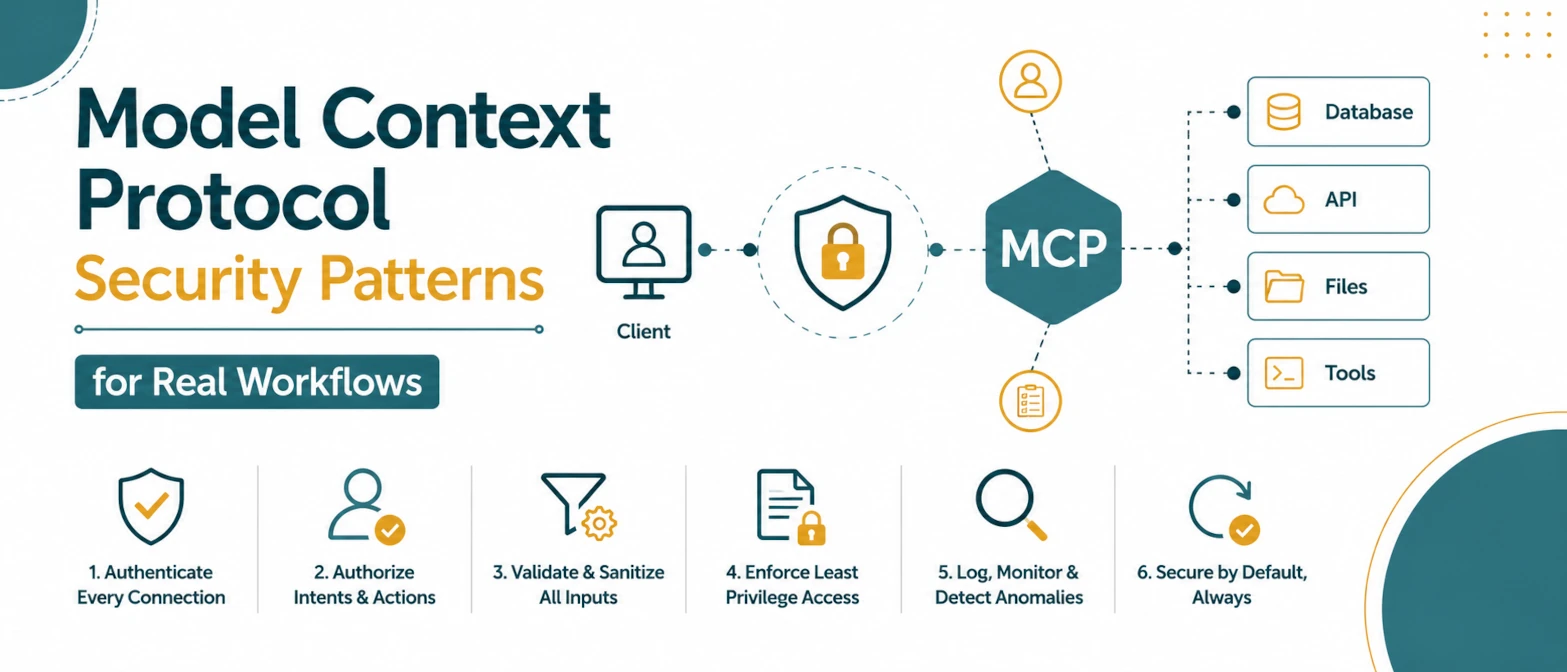
Model Context Protocol Security Patterns for Real Workflows
A security checklist for MCP tool workflows with permission boundaries, parameter validation, policy gates, and audit logs.
Read Guide →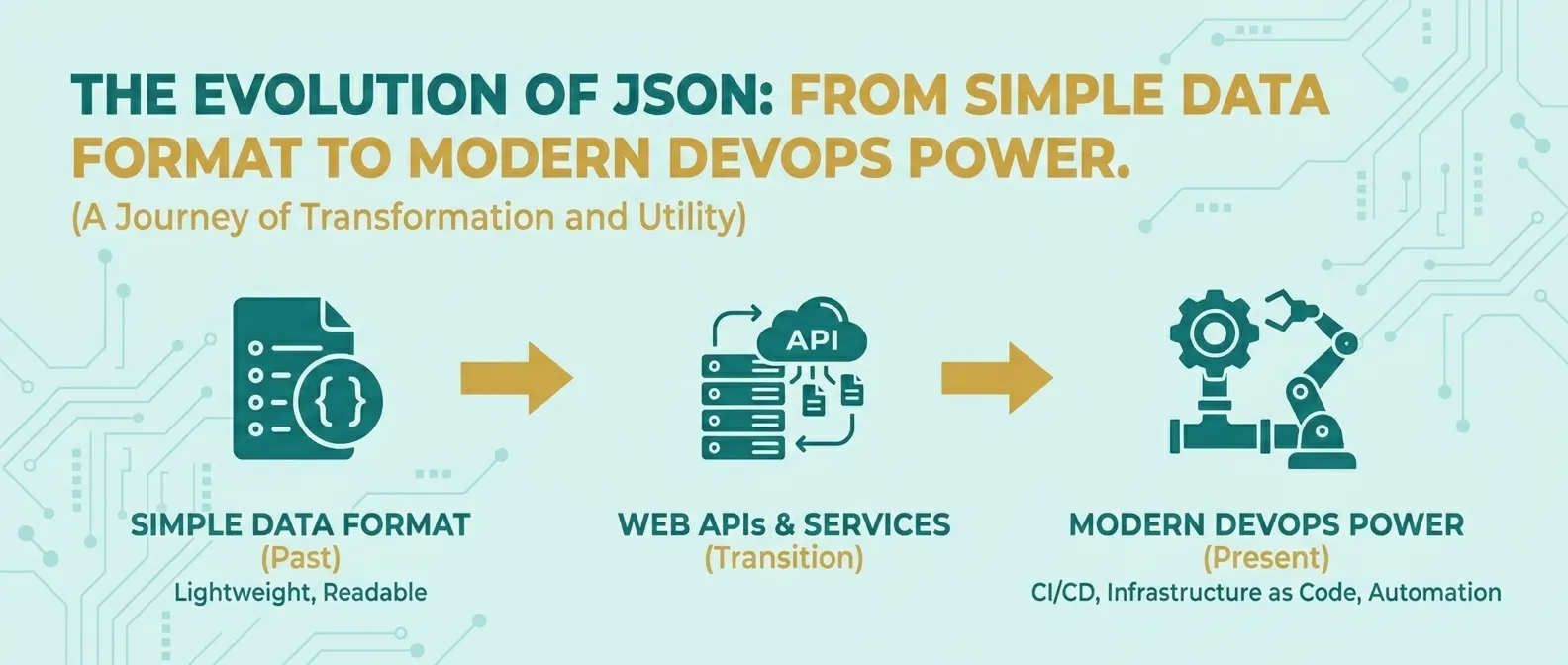
The Evolution of JSON: From Simple Data Format to Modern DevOps Power
Discover how JSON evolved from a simple lightweight format into the global standard for APIs, cloud configuration, and DevOps automation.
Read Guide →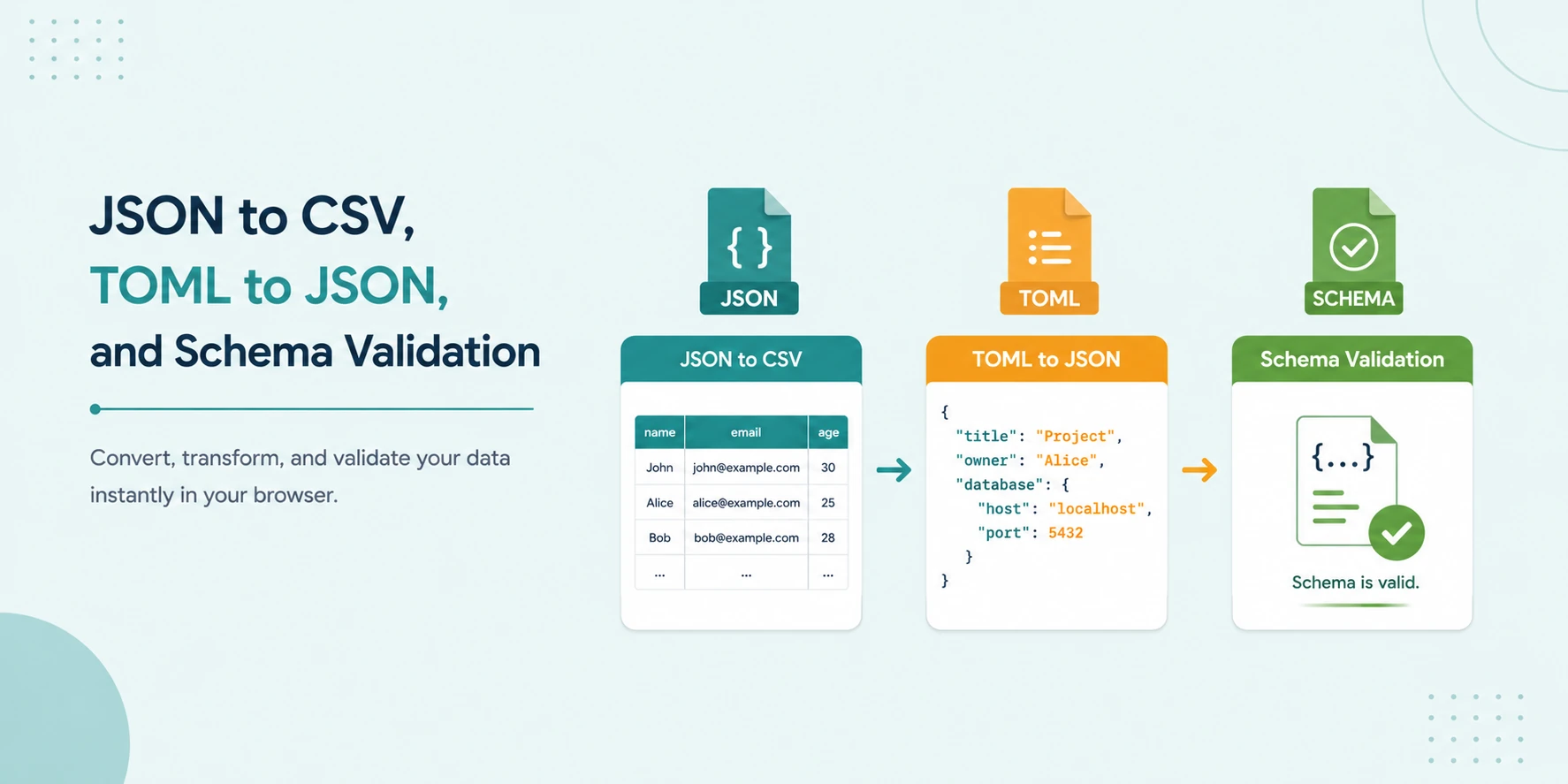
JSON to CSV, TOML to JSON, and Schema Validation: No-Upload Workflow
A secure local workflow for converting JSON to CSV, transforming TOML to JSON, and validating data with JSON Schema and Ajv.
Read Guide →
Android 17 + AI Agents: What Google I/O 2026 Means for App Developers
Google I/O 2026 clarified what Android 17, adaptive-first layouts, Android CLI 1.0, and agentic Android Studio workflows mean for production app teams.
Read Guide →