
Bulk JPG to PNG Converter
Convert multiple JPG or JPEG images to PNG. Review the converted files and download them one at a time or together as a ZIP. All processing happens locally in your browser.
Bulk JPG to PNG Workspace
Add JPG files
Choose JPG or JPEG photos from your camera or computer.
Files are processed in your browser. No account required. No file upload is needed for conversion.
What Is a JPG to PNG Converter?
A JPG to PNG converter changes a JPG or JPEG image into a PNG file.
JPG is commonly used for photos because it usually creates a smaller file. PNG is useful when an app, editor or website requires PNG input, or when you want to avoid another lossy save during editing.
The visible image usually looks identical after conversion, but the PNG file may be much larger than the original photo.
How to Convert Multiple JPG Images to PNG
- Add your images: Choose several JPG or JPEG photos from your camera or computer.
- Review the batch: Check the filenames, file sizes, dimensions and conversion status.
- Convert the files: Start the batch conversion. PNG uses lossless compression, so no quality slider is needed.
- Check the results: View the new file sizes and side-by-side previews in the detailed panel.
- Download the images: Save photos one at a time or download the full batch as a ZIP archive.
Examples of Converting JPG to PNG
JPG and PNG Compared
| Format | Best for | Transparency | Compression | Typical result |
|---|---|---|---|---|
| JPG | Photos and broad compatibility | No | Lossy | Usually smaller file size for photos |
| PNG | Graphics, screenshots and editors | Yes | Lossless pixel compression | Often creates a much larger file for photos |
Converting to PNG does not restore detail already lost to JPG compression.
Why Convert JPG to PNG? (Use Cases)
Transparency and Image Quality
JPG files do not support transparent pixels. Converting a JPG to PNG keeps the visible background from the original image. The conversion does not remove a white background or create transparent areas.
Converting JPG to PNG does not improve or restore image detail. The PNG file uses the pixels already stored in the source image. It avoids further quality loss in editors, but it cannot repair blur or existing compression marks.
Troubleshooting and Validation
If your JPG files fail to convert, check the following:
Privacy and Browser Processing
The selected JPG images are processed in your current browser session. They do not need to be uploaded to TryFormatter servers for conversion.
Keep the page open until conversion and ZIP creation are complete. Large photos may use more browser memory, so split a large batch into smaller groups if the page becomes slow.
Limitations You Should Know
Frequently Asked Questions
Can I convert several JPG images to PNG at once?
Yes. Add multiple JPG or JPEG files, convert them as one batch and download the completed PNG files together as a ZIP.
Does JPG to PNG improve image quality?
No. The PNG file keeps the pixels available in the JPG, but it cannot restore detail already removed by JPG compression.
Does converting JPG to PNG make the background transparent?
No. JPG files do not contain transparency. The PNG output keeps the visible background from the source image.
Why is the PNG file larger?
PNG uses a different compression method and is often much larger for photographs. A larger file does not always mean better image quality.
Will the image dimensions change?
No. The converter keeps the original width and height unless you use a separate resizing tool.
Will the PNG keep my metadata?
Not always. Camera details, dates, GPS information and other metadata may be removed during conversion.
Are my images uploaded?
No file upload is needed for conversion. The images are processed in your current browser session.
Can I convert PNG or WebP files on this page?
No. This page accepts JPG and JPEG files only. Use Bulk Image Converter for mixed image formats.
Can I download all converted images together?
Yes. Download images one at a time or save the completed batch as a ZIP file.
Why did one file fail?
The file may be damaged, too large for the available browser memory or not be a valid JPG image.
Should I delete the original JPG files?
No. Keep the original files when their smaller size or metadata may be useful later.
Can I remove a white background during conversion?
No. Use the background-removal tool when you need transparent areas.
Related Tools
Expert Guides & Tutorials
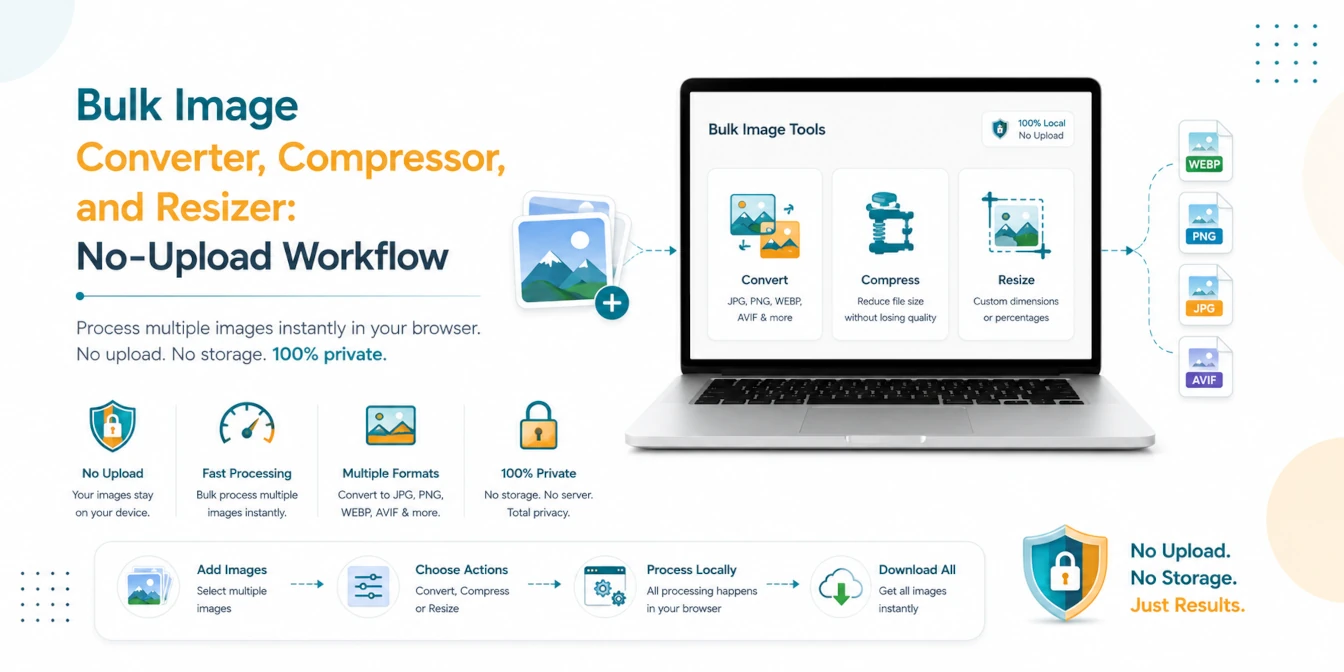
Bulk Image Converter, Compressor, and Resizer: No-Upload Workflow
A practical batch image workflow for converting, compressing, and resizing JPG, PNG, WebP, AVIF, and HEIC files locally in your browser.
Read Guide →
JPG vs PNG vs WebP: Which Image Format is Best in 2026?
Choosing the right image format can make a huge difference in quality, file size, and website speed. Discover why WebP is the winner for 2026.
Read Guide →