
Bulk WebP Converter Online Free With No Upload
Convert many JPG, PNG, GIF, SVG, or WebP files to WebP in one browser session. This free online bulk WebP converter runs entirely in your browser, requires no server upload, and keeps every image on your device. All processing happens locally in your browser.
Bulk WebP Converter Workspace
Drop Images Here
Convert JPG, PNG, GIF, SVG, or WebP files to WebP locally in your browser.
What is Bulk WebP Converter?
Bulk WebP Converter is a professional-grade browser-native utility designed specifically for migrating large volumes of image assets to Google’s high-efficiency WebP format in a single action. By leveraging HTML5 Canvas APIs and client-side processing, this tool converts your files directly within your device’s sandbox. No images are uploaded to remote servers, safeguarding private metadata, proprietary client resources, and sensitive document drafts.
The interface supports a wide variety of input formats including JPEG, PNG, GIF, SVG, and WebP. Because the computation takes place entirely in the local browser context, operations are completed instantly without network transmission delays or data limits. You can control visual compression ratios, monitor output sizes in real-time, and download your finished batch as a single structured ZIP archive.
Note: Animated GIF files may be converted as static images unless animation support is explicitly enabled by the browser and tool implementation. SVG conversion depends on browser rendering support.
Why Convert Images to WebP?
WebP has become the industry standard for publishing digital graphics due to its exceptional compression capabilities. It combines the compression mechanisms of legacy formats while resolving their individual limitations, delivering a versatile solution for modern web design.
Drastic Size Reductions
Reduces image sizes by 25% to 35% compared to JPGs of equivalent visual quality. This lowers bandwidth consumption and expedites page rendering times.
Full Alpha Transparency
Supports alpha channel transparency similar to PNG. WebP files preserve clean edges on non-rectangular graphics without the large file sizes of PNG.
Animation Capabilities
Capable of encoding animated frames, offering a replacement for legacy GIFs. Animated WebP files feature better color ranges and smaller payloads.
Supports Page Speed & SEO
Smaller WebP images can reduce page weight and improve loading performance. Faster image delivery can support better user experience and SEO audits.
JPG to WebP vs PNG to WebP
The conversion strategy changes depending on whether the source file is a photograph or a vector illustration. By understanding the visual characteristics of your inputs, you can choose the correct export configuration:
| Conversion Flow | Source Type | Transparency Handling | Visual Optimization Target | Recommended Settings |
|---|---|---|---|---|
| JPG to WebP | Continuous tone photos, complex color gradients, backgrounds | No (transparent areas converted to solid white) | Lossy compression; removes imperceptible pixel details to minimize file footprint | 75% - 85% Quality. Balance detailed clarity with high compression ratios. |
| PNG to WebP | Logos, icon sheets, sharp text layouts, interface UI mockups | Yes (preserves alpha transparency and anti-aliasing edges) | Lossless or high-fidelity lossy; preserves crisp borders and solid colors | 85% - 95% Quality. Ensure fine annotations and transparent layers do not show color halos. |
WebP Quality Settings Explained
Quality scales range from 10% (maximum compression, low fidelity) up to 100% (minimum compression, highest fidelity). Selecting the correct setting requires aligning with your publishing destination:
- High Fidelity (90% - 95%): Intended for hero graphics, large banner photos, or branding images. This preserves intricate colors and subtle textures while reducing file sizes compared to original JPGs.
- Standard Web (80% - 85%): The recommended sweet spot for blogs, article content illustrations, and product listings. File size savings are significant with no visible difference in quality.
- Highly Compressed (65% - 75%): Best for thumbnails, preview grids, or background patterns. While some minor compression artifacts may be present on high-resolution screens, loading speeds are maximized.
Before and After WebP Conversion Preview
Compare the original image with the converted WebP version using the slider. Drag the divider left or right to inspect sharpness, detail, and visual quality after compression.
 Original ImagePNG · 2.2 MB
 Converted ImageWebP · 203 KB −91%
Example preview only. Actual savings depend on image type, resolution, and selected quality.
How to Convert Multiple Images to WebP
Convert your image batches locally in your browser memory using these structured steps:
Step 1: Upload Your Image Batch
Drag and drop multiple image files (JPG, PNG, GIF, SVG, or WebP) directly into the workspace dropzone, or click the file selector to select files from your local storage.
Step 2: Choose Quality Ratio
Use the settings sidebar to adjust the quality slider. Lower values yield smaller files, while higher values preserve fine line details and sharp color boundaries.
Step 3: Convert to WebP
Click "Convert All" to process the entire queue simultaneously, or check specific file slots and click "Convert Selected" to run targeted batch actions.
Step 4: Download WebP ZIP
Save individual converted files by clicking "Download" on their specific slots, or click "Download ZIP" to download your entire converted archive in one package.
Examples of Bulk WebP Conversion
To help you understand the power of browser-native batch conversions, here are some typical examples of workflows where this tool excels:
- Example 1 - Transparent Logo Assets: You have 30 transparent PNG icons. You convert them into transparent WebP files, maintaining the transparency while cutting overall asset footprint by 45%.
- Example 2 - Blog Media Optimization: A blogger compiles 15 camera JPG pictures. They drop them into Bulk WebP Converter, set quality to 80%, and convert them all to WebP. This results in optimized web illustrations, boosting page loading speeds.
- Example 3 - Ecommerce Product Catalog: An online merchant has a directory of mixed PNG and JPG product pictures. They batch convert the folder to WebP to reduce their image asset payload and enhance site speed.
Browser-Based Privacy and No-Upload Processing
TryFormatter's Bulk WebP Converter runs entirely within your browser's local sandbox. Unlike typical web tools, your images are never sent, cached, or processed on remote cloud servers. All canvas mapping, scaling, and compression happen inside your device's memory, ensuring confidential deliverables, personal records, and business assets remain under your direct control.
WebP for Websites, Blogs, Ecommerce, and SEO
Integrating WebP images improves visitor retention and site efficiency. Here are some of the key use cases for WebP compression:
Ecommerce & Storefronts
Standardizing catalog lists and product grids to WebP accelerates product page loads. Faster browsing reduces bounce rates and drives shopping cart completions.
Content Creators & Blogs
Modern layouts require rich visual assets. Converting header illustrations and screenshot portfolios to WebP helps blogs load rapidly on mobile networks.
Developers & Designers
Building clean asset directory structures is critical. Use WebP templates to align formatting, maintain visual transparency, and minimize git repository sizes.
SEO Ranking Audits
Google Lighthouse audits prioritize next-generation image formats. Converting your site assets to WebP satisfies Core Web Vitals parameters, increasing search discoverability.
⚠️ Common WebP Conversion Mistakes
- Converting transparent graphics to low quality: Exporting transparent PNGs to WebP with settings below 75% can cause color halos or blurry outlines near transparent borders.
- Closing the workspace tab too early: Because the tool operates in-browser, closing the window or navigating away during conversion halts the queue and clears loaded files.
- Over-compressing annotated screenshots: Visual mockups or diagrams containing small text should be converted at 85% quality or higher to keep words legible.
- Double-compressing files: Repeatedly converting a compressed WebP through lossy quality sliders degrades the visual structure without providing any extra file size savings.
Related Image Tools
Combine WebP conversion with other utilities from the TryFormatter Image Studio to manage, optimize, and edit your project resources:
Deployment & Conversion Quality Checklist
Verify your configuration steps to ensure high-fidelity conversions. Checked items persist in your local browser settings.
Frequently Asked Questions
How does Bulk WebP Converter protect my privacy?
All image processing happens locally within your web browser's memory using HTML5 Canvas. Your images are never sent to external servers or logged on our infrastructure, keeping your files confidential.
Can I convert transparent PNG files to WebP?
Yes. WebP fully supports alpha transparency. Converted PNG files retain their transparent backgrounds while achieving a significantly lower file footprint.
What is the best quality setting for web images?
For most websites, blogs, and ecommerce listings, a quality setting of 80% to 85% provides a good balance between visual quality and file size optimization.
Is there a limit on file quantity or batch size?
There are no server-enforced limits. You can process as many images as you need. The overall speed and capacity depend on your device's CPU and available system RAM.
Does Bulk WebP Converter support animated images?
Support depends on the browser and the tool implementation. Animated GIF files may be converted as static images unless animation support is explicitly available.
Is the converted file size guaranteed to be smaller than the original?
Not always. For most standard images, WebP compression reduces file size significantly. However, some simple images or very high quality settings may produce files that are similar in size or slightly larger than the original.
Can I use Bulk WebP Converter offline?
The tool is browser-based, so conversion can continue after the page has loaded if the required scripts and assets are already available in your browser. Initial page access still requires an internet connection.
Related Tools
Expert Guides & Tutorials
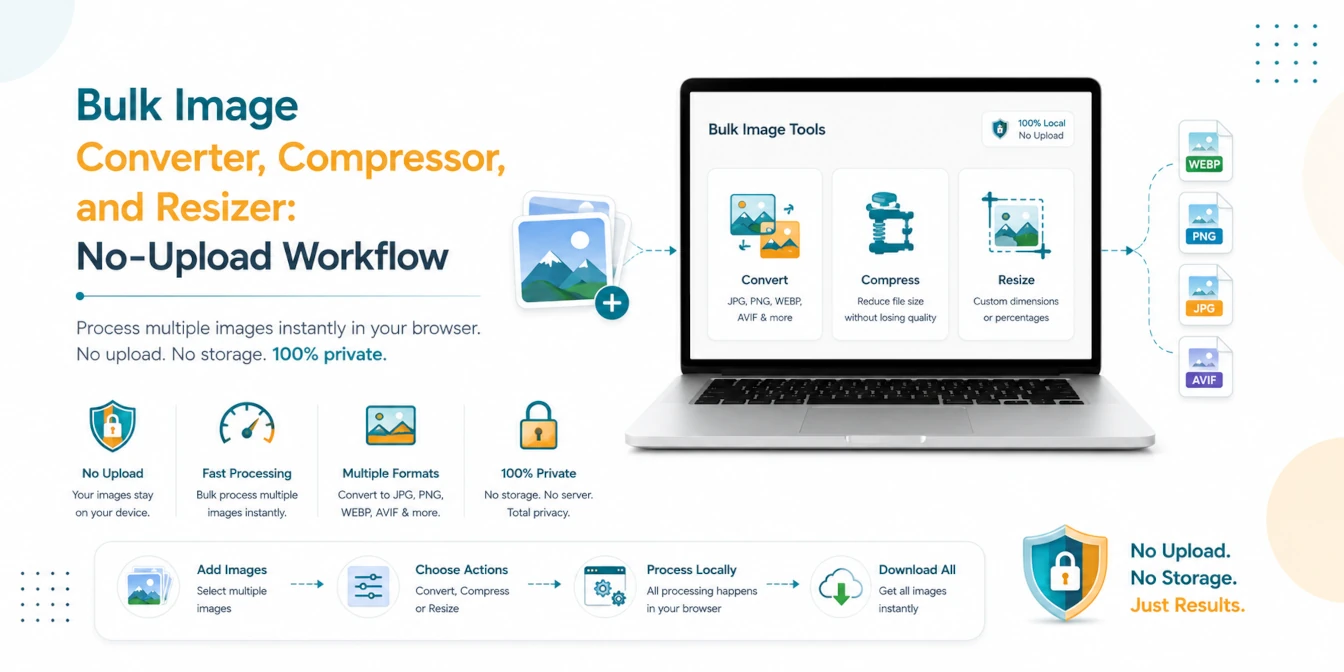
Bulk Image Converter, Compressor, and Resizer: No-Upload Workflow
A practical batch image workflow for converting, compressing, and resizing JPG, PNG, WebP, AVIF, and HEIC files locally in your browser.
Read Guide →
JPG vs PNG vs WebP: Which Image Format is Best in 2026?
Choosing the right image format can make a huge difference in quality, file size, and website speed. Discover why WebP is the winner for 2026.
Read Guide →
How to Optimize Images for Web Performance: The Ultimate 2026 Guide
Slow websites lose users. Learn the professional secrets of image optimization—from WebP conversion to bulk compression—and boost your Core Web Vitals instantly.
Read Guide →