
Bulk AVIF Converter
Convert multiple JPG, PNG and WebP images to AVIF using a browser-based WebAssembly encoder. Review each result and download individual files or the full batch as a ZIP. All processing happens locally in your browser.
Bulk AVIF Workspace
Add images to convert
Choose JPG, PNG or WebP images and convert them to AVIF.
AVIF encoding runs in your browser using WebAssembly. No file upload is needed for conversion.
What Is an AVIF Image?
AVIF is a modern image format based on the AV1 image codec. It can store photos and graphics with good visual quality while using less space than many older formats.
AVIF is useful for websites, product photos, blog images and pages that contain many large visuals. A smaller image file can reduce the amount of data a visitor needs to download.
The final AVIF size depends on the source image, dimensions, quality and encoding settings. AVIF is not guaranteed to be smaller than every JPG, PNG or WebP file.
How to Convert Multiple Images to AVIF
- Add your images: Choose the JPG, PNG or WebP files you want to convert.
- Review the batch: Check each filename, image size and dimensions.
- Set the AVIF quality: Choose a lower value for a smaller file or a higher value for more detail.
- Choose the encoding speed: Select faster encoding, balanced settings or a slower option for a potentially smaller file.
- Convert the images: Process the selected files with the WebAssembly AVIF encoder.
- Download the results: Save one AVIF file or download the complete batch as a ZIP.
AVIF Example: Quality and File Size
AVIF quality affects image detail, file size and encoding time. The example below uses the same source photo for every quality level.
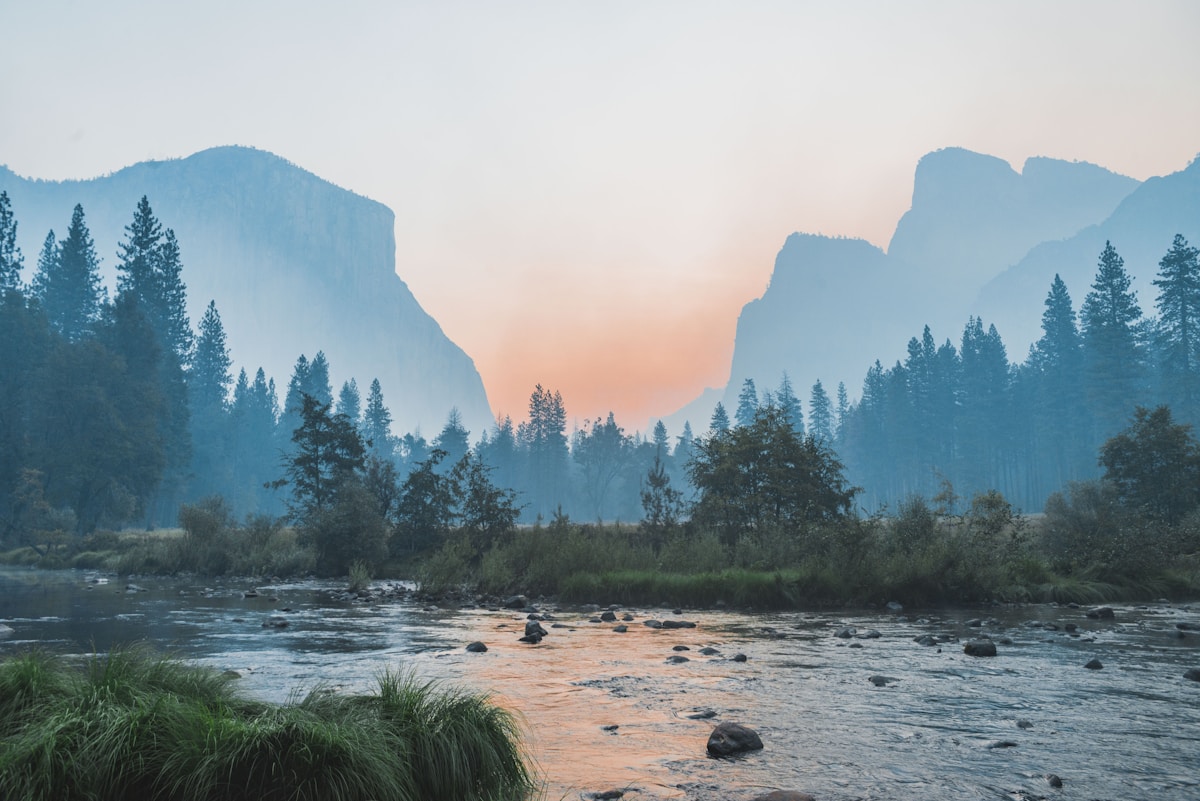
Source photo by Marek Piwnicki on Unsplash. The AVIF values were generated locally with the WebAssembly encoder.
Have JPG, PNG or WebP images to convert?
Convert images to AVIFAVIF vs WebP, JPG and PNG
| Format | Best for | Transparency | Quality control | Main point |
|---|---|---|---|---|
| AVIF | Modern websites and image-heavy pages | Yes | Yes | Can create small files but usually takes longer to encode |
| WebP | Modern websites and general web images | Yes | Yes | Fast to create and widely used in modern browsers |
| JPG | Photos, email and broad compatibility | No | Yes | Easy to open and quick to create |
| PNG | Transparency, screenshots and sharp pixel detail | Yes | No lossy quality slider | Often creates larger files for photos |
The right format depends on browser support, image content, visual quality and the system where the image will be published.
Why Convert Images to AVIF? (Use Cases)
AVIF Quality and Encoding Speed
AVIF quality controls the balance between image detail and file size. A lower setting usually creates a smaller file but may soften textures, text and edges.
Encoding speed controls how much time the encoder spends creating the AVIF file. Slower encoding may create a smaller result, but it also uses more processing time.
Start with the balanced settings. Then compare the converted image at the size where it will be used.
Transparency, Colour and Metadata
Transparent PNG and WebP images can keep their transparent pixels when the AVIF encoder supports alpha output.
Some colour profiles may appear slightly different after conversion. The final result depends on the source image, browser and encoder.
The converted AVIF file may not keep camera, date, GPS, copyright or editing metadata. Keep the original image when this information matters.
Privacy and Browser Processing with WebAssembly
The AVIF encoder runs in your browser through WebAssembly. It is loaded when you start using the tool, and the selected image pixels are processed in the current browser session.
AVIF encoding uses more CPU and memory than a basic JPG or PNG export. Large images and batches may take longer, especially on mobile devices.
Keep the page open until conversion and ZIP creation are complete.
AVIF Conversion Limitations
Frequently Asked Questions
What is AVIF?
AVIF is a modern image format based on the AV1 image codec. It supports image compression, transparency and high-quality images for the web.
Can I convert several images to AVIF at once?
Yes. Add multiple JPG, PNG or WebP images, choose the AVIF settings and convert them together.
Does this tool use Canvas to create AVIF files?
No. The tool uses a WebAssembly AVIF encoder because browser Canvas export does not create AVIF files reliably.
Are my images uploaded?
No file upload is needed for conversion. Your selected images are processed in the current browser session.
Why does AVIF conversion take longer?
AVIF encoding needs more processing than many JPG or WebP exports. Higher quality and slower encoding settings can increase the conversion time.
Will AVIF always be smaller than WebP or JPG?
No. File size depends on the image, dimensions, quality and encoder settings. Compare the results before replacing an existing image.
Can AVIF keep transparency?
Yes. Transparent pixels can be preserved when the source image contains transparency and the encoder supports alpha output.
Does AVIF conversion preserve metadata?
Not always. Camera, date, GPS, copyright and editing metadata may be removed when the AVIF file is created.
Why did an image fail to convert?
The file may be damaged, too large for the available browser memory or use an image format the tool cannot decode.
Can I use AVIF on every website?
Many modern browsers support AVIF, but some older browsers, content systems and editing tools may still need WebP or JPG files.
Can I download all converted AVIF files together?
Yes. Download each AVIF image separately or save the completed batch as a ZIP file.
Should I delete the original images?
No. Keep the original files when you may need their metadata, colour profile or original quality later.