Blur Part of an Image Online
Blur, pixelate or cover faces, names, numbers and other parts of an image. Mark one or more areas, review the result and download the edited file. All processing happens locally in your browser.
Blur Part of an Image Online
Blur Part of an Image Online
Drag and drop your photo or screenshot to hide faces, text, and sensitive details
Your selected image is processed inside your browser.
What Is Partial Image Blur?
Blur Part of an Image lets you hide selected areas of a photo, screenshot, document image, or graphic. You can mark one or more rectangular regions and apply blur, pixelation, or an opaque colour cover without changing the rest of the image.
The tool can help conceal names, email addresses, account numbers, faces, vehicle plates, addresses, or other details before an image is shared. Blur and pixelation are useful for visual concealment, while an opaque cover is generally more suitable for highly sensitive information.
How to Blur Part of an Image
- Choose an image: Upload a JPG, PNG, or WebP file to the editing workspace.
- Select an effect: Choose Blur, Pixelate, or Opaque Cover.
- Mark an area: Click and drag over the part of the image you want to conceal.
- Adjust the region: Move or resize the selected area and change its intensity, pixel size, or cover colour.
- Add more regions: Mark additional areas when the image contains several details that should be hidden.
- Review and download: Check every marked area, choose JPG, PNG, or WebP, and download the edited image.
Blur, Pixelate, or Use an Opaque Cover
Each concealment mode produces a different result.
- Blur: Softens the selected area by blending nearby pixels. It works well for faces, backgrounds, and information that only needs to be less noticeable.
- Pixelate: replaces fine details with larger blocks of colour. It creates a mosaic effect that can hide text, numbers, faces, or other small details.
- Opaque Cover: places a solid black, white, or custom-coloured block over the selected area. This is generally the safer choice for passwords, access keys, identity numbers, and other highly sensitive text.
Blur and pixelation should not be treated as guaranteed permanent redaction. Information may remain partly recognisable when the effect is weak or the original detail is large and clear.
Working With Multiple Concealment Regions
An image may contain several separate details that need attention. You can create multiple regions and manage each one independently.
- Select a region: Choose a marked area from the canvas or region list.
- Move it: Reposition the region when it does not fully cover the intended detail.
- Resize it: Expand or reduce the area so all required pixels are included.
- Change the effect: Switch an individual region between blur, pixelation, and opaque cover.
- Delete it: Remove a region without changing the other marked areas.
Keep a small margin around sensitive text or objects. A region that ends too close to the content may leave readable edges exposed.
Examples and Use Cases: Faces, Names, and Screenshots
Different images require different levels of concealment.
- Software screenshots: Hide email addresses, user IDs, internal URLs, account names, tokens, or private messages before sharing a bug report.
- Photos: Blur faces, house numbers, vehicle plates, badges, or background information that should not be visible.
- Document images: Cover names, signatures, identification numbers, addresses, or financial details before sharing a sample.
- Tutorials: Conceal personal account information while keeping the important interface steps visible.
For sensitive credentials or identity information, use an opaque cover rather than a light blur. Make sure the cover extends across the complete detail.
Why Blur Is Not Always Permanent Redaction
Blur changes the appearance of pixels, but it may not remove every visual pattern from the selected area. A mild effect can leave letters, numbers, or shapes partly recognisable.
Pixelation can also reveal information when the blocks are too small or when the hidden text follows a familiar pattern. Increasing the effect can make the content harder to read, but it still should not be treated as a guarantee.
For passwords, private keys, banking details, identity numbers, or confidential records, place a fully opaque cover over the complete area. Then inspect the downloaded image carefully before sharing it.
Reviewing the Downloaded Image
Always open the downloaded file after processing instead of relying only on the editor preview.
- Zoom in and confirm that every intended area is fully concealed.
- Check the edges of each region for visible letters, numbers, or image details.
- Confirm that the effect is included in the downloaded image rather than appearing only as an editor overlay.
- Check that unrelated parts of the image remain clear.
- Remove image metadata separately when location, camera, or device information may also be sensitive.
Visual concealment and metadata removal are different tasks. Use the related EXIF removal tool when the file may contain private metadata.
Does Blurring Change Image Dimensions?
Applying blur, pixelation, or an opaque cover normally keeps the original image width and height. The selected effects change pixels inside the marked regions rather than resizing the canvas.
The downloaded file size can still change because the image is encoded again. Output format, quality, transparency, and image content all affect the final file size.
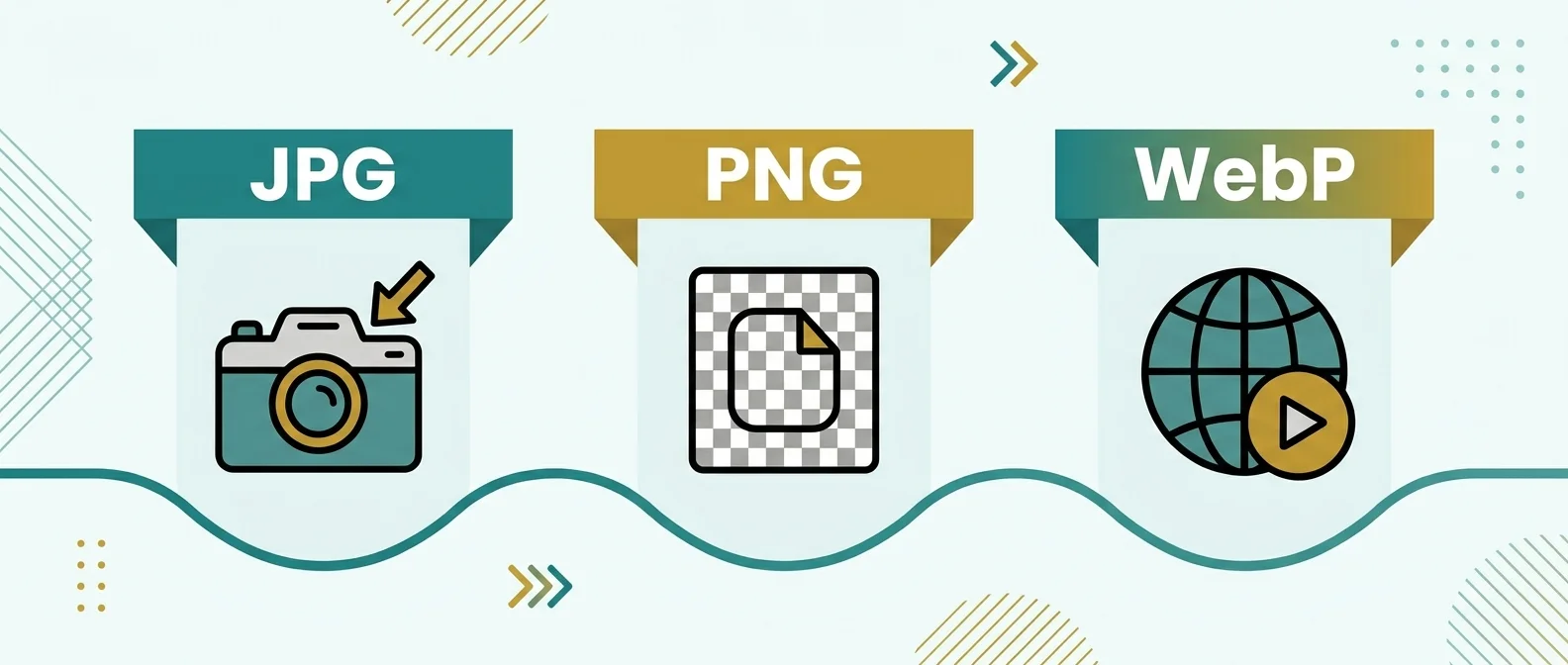
JPG, PNG, and WebP Output
- PNG: Suitable for screenshots, diagrams, sharp text, and images that contain transparent areas.
- WebP: Suitable for web use and can support both photographic content and transparency.
- JPG and JPEG: Suitable for photographs and images that do not require transparency. Quality settings may affect file size and visible compression.
Choose PNG for text-heavy screenshots when sharp edges are important. JPG or WebP may create smaller files for photographs, depending on the selected quality.
Privacy and Browser Processing
The selected image is processed inside the browser workspace while regions, effects, previews, and the downloadable result are prepared.
Processing time depends on the image dimensions, number of regions, blur intensity, output format, browser, and available device memory. Large images or several effect regions may take longer to render.
Related Image Tools
Frequently Asked Questions
How do I blur part of an image?
Choose a JPG, PNG, or WebP image, select Blur, Pixelate, or Opaque Cover, draw over the area you want to hide, review the result, and download the edited image.
Can I blur several areas?
Yes. You can create multiple regions and adjust the position, size, effect type, and strength of each region independently.
What is the difference between blur and pixelation?
Blur softens detail by blending nearby pixels, while pixelation replaces detail with larger blocks of colour. Neither method should be treated as guaranteed permanent redaction.
Is blur safe for hiding passwords?
A light blur may leave information partly recognisable. Use a fully opaque cover for passwords, access keys, identity numbers, and other highly sensitive details, then inspect the downloaded file.
Can I move or resize a blur region?
Yes. Select a region to move it, resize it, change its concealment mode, adjust its intensity, or delete it.
Does blurring change the image dimensions?
Blurring normally keeps the original width and height. The downloaded file size may still change because the image is encoded again.
Which formats can I download?
The edited image can be exported as JPG, PNG, or WebP when those formats are enabled in the workspace. Quality settings apply only to supported lossy formats.
Is my image uploaded to a server?
The selected image is processed inside the browser workspace. Use a stronger no-upload statement only after confirming the production network behaviour.