
Fix Bloated SVGs: Minify, Sanitize, and Speed Up Icons Locally
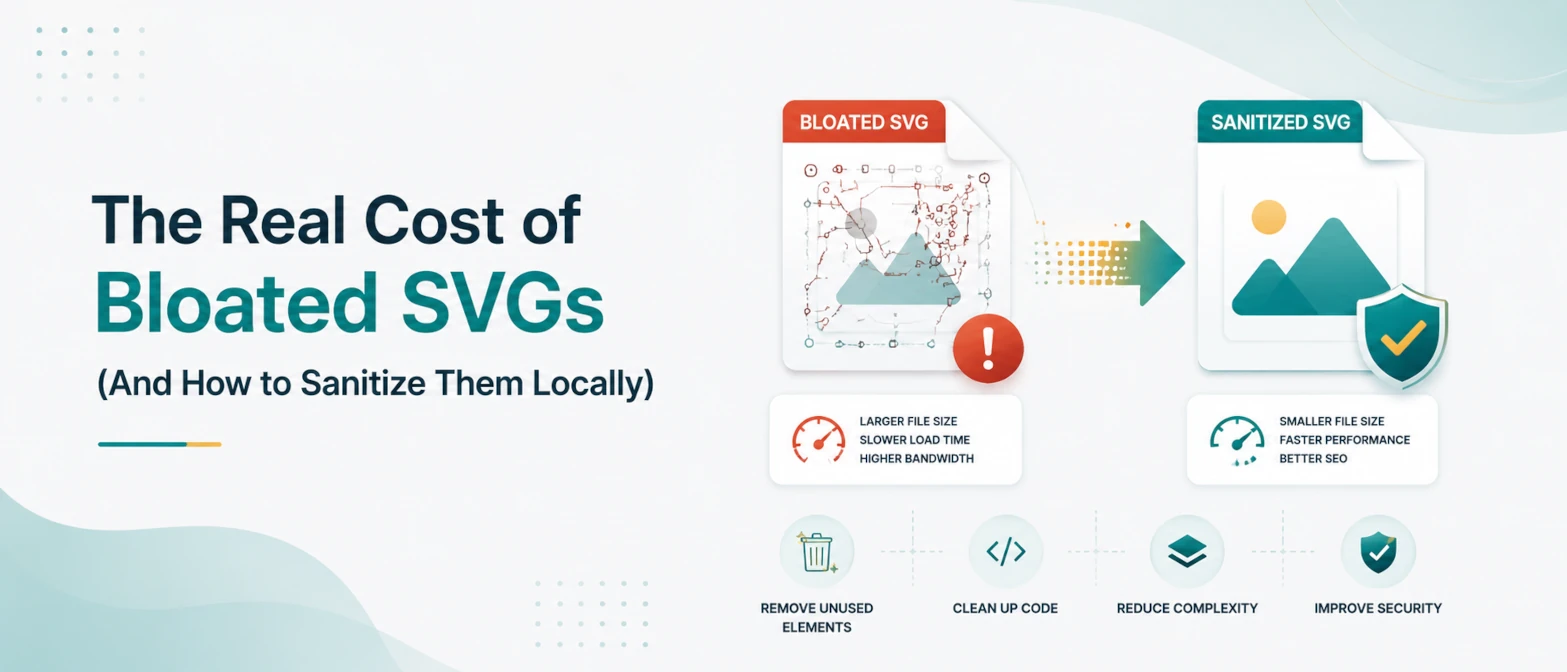
SVG is perfect for icons, logos, and interface graphics because it stays sharp at any size. The problem appears after export: files from Figma, Illustrator, Sketch, and icon packs often include hidden metadata, unused groups, long decimal paths, and extra attributes. That baggage makes SVG files larger than they need to be and can slow down pages that use many inline icons.
This guide shows how to minify and sanitize SVGs before they reach production. You will learn what to remove, what to keep, how to avoid visual regressions, and why a no-upload local workflow is safer for unreleased brand assets and design-system files.
Short answer
To optimize SVG performance, remove unused metadata and nodes, simplify paths, and compress output with safe settings. Do this locally in the browser to keep unreleased design assets private. A local SVGO-style workflow gives smaller files, cleaner DOM output, and better rendering behavior without server upload.
Where SVG bloat comes from
- Editor-specific namespaces and export comments.
- Nested empty groups from design layer history.
- Excessive decimal precision in path coordinates.
- Hidden elements and masks that are no longer used.
- Inline style duplication across repeated shapes.
Performance impact on real pages
If SVG is used as inline markup, every node becomes part of the DOM. Large icon sets with unoptimized markup can significantly increase DOM size and style recalculation work. For external SVG files, extra bytes still affect transfer and decoding time. In both cases, users feel slower loading and lower interactivity quality.
Sanitization checklist before publish
- Strip metadata: remove editor comments and unused namespace attributes.
- Collapse groups: flatten unnecessary nested groups.
- Round decimals: reduce precision to practical visual limits.
- Remove hidden nodes: delete shapes not visible in final output.
- Normalize IDs: avoid collisions when inlining multiple SVG assets.
- Validate rendering: check visual parity at 1x and 2x scale.
Security angle: why local optimization matters
Design assets often include unreleased brand work, campaign illustrations, and proprietary product diagrams. Uploading raw SVG to unknown third-party optimizers can expose roadmap information. A browser-local workflow avoids this risk because processing remains on-device and no source file needs server transfer.
Examples
1. Marketing icon set cleanup
Input: 120 exported SVG icons from mixed design sources.
Action: metadata removal, path simplification, namespace cleanup.
Result: significant size reduction and faster icon paint in UI.
2. Inline SVG performance issue
Input: landing page with large decorative inline SVG elements.
Action: removed redundant groups, moved non-critical art to external files.
Result: lower DOM complexity and improved responsiveness.
3. Reusable design-system logos
Input: logo assets with inconsistent IDs and inline style patterns.
Action: normalized attributes and standardized optimization rules.
Result: reliable rendering across apps and fewer CSS conflicts.
Best practice for frontend teams
- Keep source SVG in design repository.
- Generate optimized publish assets through repeatable rules.
- Document precision and cleanup policy per project.
- QA output in light and dark themes where applicable.
Production validation strategy for SVG pipelines
Optimization should be measurable. Use a repeatable validation strategy before and after each cleanup pass:
- Record baseline size, node count, and render timing for representative assets.
- Run optimization and sanitization with versioned rules.
- Compare file size deltas and visual output at target breakpoints.
- Check color, alignment, and stroke behavior in light and dark themes.
- Publish only after parity checks pass in desktop and mobile browsers.
This prevents regressions where optimization saves bytes but introduces subtle UI defects.
SVG security hygiene
Beyond performance, SVG sanitation helps security posture. Untrusted SVG may include unexpected links, style behavior, or embedded script-like content in some contexts. Defensive handling includes:
- Sanitize incoming assets before repository merge.
- Avoid rendering untrusted inline SVG directly in sensitive surfaces.
- Enforce content security policy where applicable.
- Prefer controlled icon registries over arbitrary user uploads.
Team workflow at scale
For multi-team systems, standardization is key. Store source design exports in one folder, optimized publish assets in another, and enforce naming rules so build systems can generate deterministic bundles. This supports caching, reduces duplicate assets, and prevents accidental use of unoptimized files in production pages.
When these habits are combined with local optimization tools, teams ship faster while keeping proprietary design data private.
TryFormatter tools for optimization workflow
Frontend asset performance stack
Frequently asked questions
Safe optimization usually does not. Quality issues happen only when precision is reduced too aggressively.
No. Inline only when you need direct styling or interaction. Use external files for larger decorative assets.
Yes. Untrusted SVG can include scripts or unexpected references. Sanitize files before use in applications.
Local processing protects unreleased design assets and avoids uploading proprietary files to third parties.
Conclusion
SVG is powerful, but raw exports are rarely production-ready. A local sanitization and optimization routine gives smaller payloads, cleaner DOM output, and safer handling of proprietary design assets.